How to Save Recipes from Your Camera Roll (Before 500 Screenshots Bury Them)
The camera roll is where recipes go to die. You screenshot a dish from Instagram, photograph a magazine page, snap your mum’s handwritten card. Six months later, those recipes are somewhere in 8,000 photos with no way to search by ingredient, no scaling, and no path to a shopping list. Here is how to get them out.
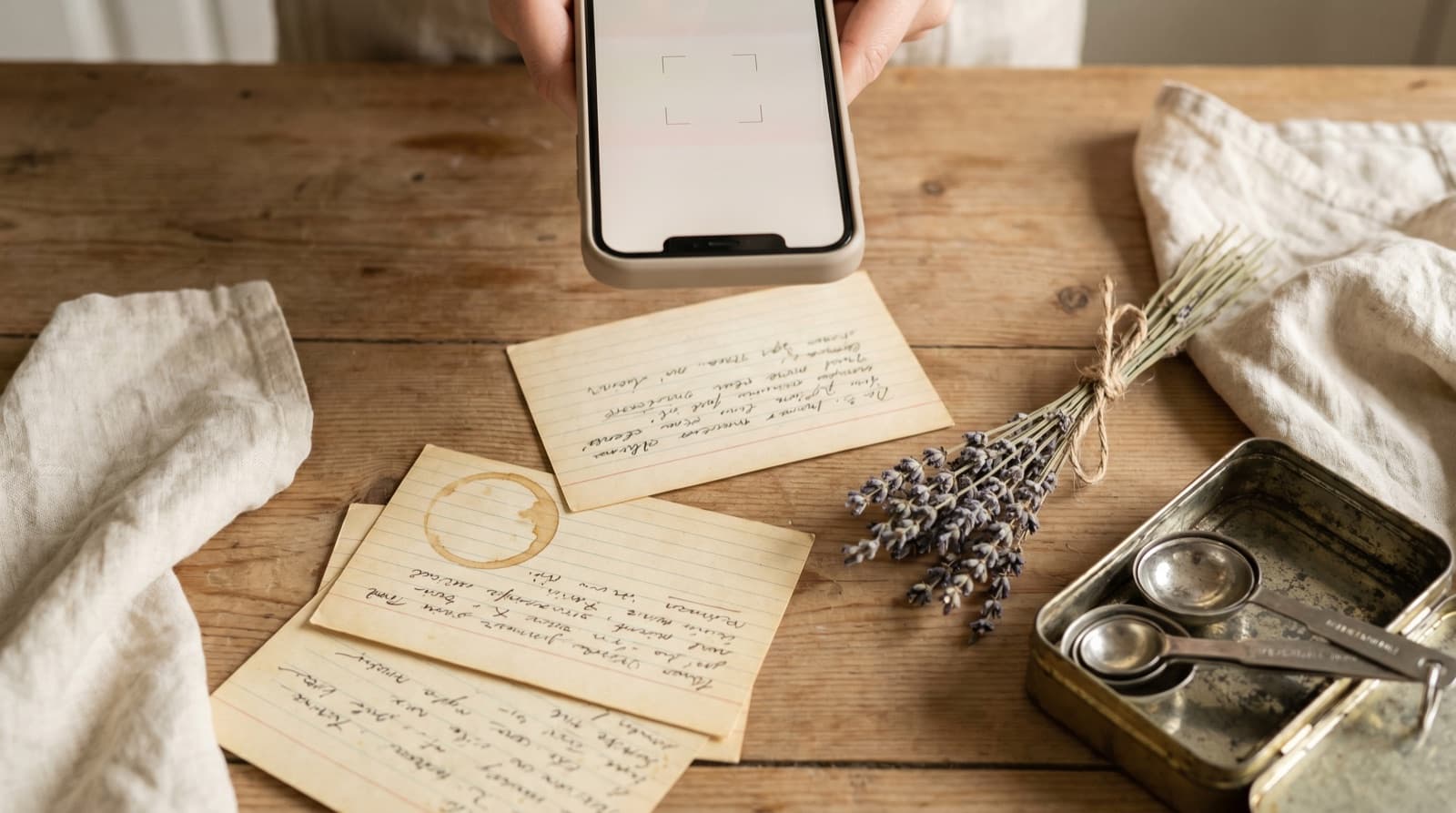
There is a particular kind of photographic optimism that leads to the camera roll recipe pile. You are scrolling Instagram and you see a brilliant-looking carbonara. You screenshot it because screenshotting takes one tap and opening a new app takes fifteen seconds. You screenshot the next one too — a roasted cauliflower thing — and a recipe from a food magazine in the waiting room, and the index card your aunt wrote out at Christmas.
The intent is good. The result is a camera roll with 500 recipe images mixed into 8,000 other photos, where the only way to find the carbonara is to remember approximately when you screenshot it and scroll until you spot it. Most people never cook from these screenshots. The recipe dies in the camera roll the same way it would have died on the internet — it just takes longer.
Why the Camera Roll Fails as a Recipe Library
The camera roll is a chronological archive of images. It is excellent at storing memories. It is structurally incapable of functioning as a recipe library, for a handful of reasons that are worth naming precisely.
No ingredient search
When you want to cook something with the courgettes in your fridge, you cannot ask your camera roll “what recipes have I saved that use courgettes?” Apple Photos on iOS 15 and later does have limited OCR search — it can sometimes find screenshots that contain a typed ingredient name — but it does not understand recipe structure, so it cannot distinguish between a photo of a recipe that uses chicken and a photo of your pet chicken. Google Photos has similar limitations. Neither is reliable enough to use as a recipe search engine.
Buried in non-recipe content
Your camera roll contains holidays, receipts, memes, WhatsApp photos, selfies, and approximately 40 photos of the sky. Recipe screenshots do not sort themselves into a separate album. Even the iOS “Screenshots” album, which automatically groups all screenshots, mixes recipe screenshots with screenshots of maps, bank statements, conversations, and everything else you have ever screenshotted. There is no filter.
Storage pressure leads to mass deletion
When your phone notifies you that storage is nearly full, the easiest thing to delete is screenshots. Most people have done this: selected all screenshots, deleted them in bulk to free up space, and then realised three months later that the recipes went with them. A camera roll is not a backup. A screenshot that has not been imported into a proper library is one storage notification away from disappearing.
Images cannot be scaled or shopped
A recipe screenshot serves four. You are cooking for two. The screenshot gives you no way to halve the quantities — you have to manually divide each measurement in your head, then mentally rebuild the shopping list. A structured recipe in a proper library does both automatically. The image format collapses all that functionality into a flat picture.
What Recipe Screenshots Actually Come From
Before getting into how to import them, it is useful to map what you probably have in your camera roll:
- Instagram recipe carousels. You saw a recipe in a multi-image post, screenshot the ingredients slide and the method slide, and moved on. The better approach for Instagram recipes is to save the post URL and import it, but for screenshots already taken, photo import is the recovery method.
- Pinterest recipe images. Rather than following the link through to the source, you screenshot the recipe from the Pinterest image. These often lack the full method — Pinterest preview images do not always show every step — so URL import from the source is cleaner if the original link is still live.
- Website recipe pages. You screenshot a recipe from a food blog instead of bookmarking or importing it. If the site is still live, import via URL for much better text quality.
- Physical printed pages. A recipe page from a magazine photographed at the dentist, a recipe card from a meal kit box, a page from a cookbook. These have no URL — photo import is your only automated option (short of typing it out manually).
- Handwritten recipe cards. Your mum’s index card, grandmother’s notebook, a note someone scribbled on paper. OCR works on clearly written text. For a dedicated guide to this specific case, see the post on digitising handwritten recipes.
- Forwarded message screenshots. A recipe someone typed out in WhatsApp, iMessage, or Signal that you screenshot before it scrolled away.
How to Import Recipes from Your Camera Roll
Method 1: Share a screenshot directly to Pantree
- Open Apple Photos or Google Photos on your phone.
- Find the recipe screenshot. Tip: check the “Screenshots” album in Apple Photos — it groups everything in one place.
- Long-press the image (or tap the share icon) to open the share sheet.
- Scroll the app row and tap Pantree.
- Pantree analyses the image, extracts the text using OCR, and creates a recipe entry. Review the imported ingredients and steps, correct any OCR errors, and save.
This method works for printed text (magazine pages, website screenshots, typed recipe cards) and reasonably well for clear handwriting. Blurry images, dark backgrounds, and very small text will produce messier OCR output — use the manual edit to clean up anything the extraction misses.
Method 2: Find and import the original URL instead
For any screenshot that came from an online source — Instagram, a recipe blog, a meal kit website — importing via the original URL will always give you better quality data than photo OCR. The source page has properly structured recipe text; a screenshot is a flat image of that text.
If you remember the source, search for the recipe by name or by the account you got it from. If the screenshot shows a username or watermark, find the original post and copy the URL. Paste it into Pantree’s URL import. You get properly formatted ingredients and steps, not OCR approximations.
Method 3: Use Apple Photos search to surface recipe screenshots
On iOS 15 and later, the Photos search bar reads text inside screenshots. Type an ingredient name — “pasta”, “chicken”, “lemon” — and iOS will return screenshots that contain that word. It is not perfect, but it is a useful discovery tool for surfacing screenshots you have forgotten about. Once found, share them to Pantree one by one.
Clearing the Backlog: A 20-Minute Import Session
If you have a camera roll full of recipe screenshots accumulated over months or years, a one-off import session is the fastest way to clear it:
- Open the “Screenshots” album in Apple Photos (or filter by “Screenshots” in Google Photos).
- Scroll through and identify images that are clearly recipes. Anything that shows an ingredients list, quantities, or cooking steps qualifies.
- Share each one to Pantree in turn. Review and correct the OCR output, then save.
- Once a screenshot is safely in Pantree, delete it from your camera roll if you want to recover the storage space.
A backlog of 30 to 50 recipe screenshots takes roughly 20 to 30 minutes to process this way. The result is a camera roll with fewer screenshots cluttering it and a Pantree library with searchable, scalable recipes instead of flat images.
Going Forward: Screenshot Less, Import Directly
The camera roll habit forms because screenshotting is frictionless. But screenshotting is actually more work in the long run: you save a degraded copy of the recipe and then face the extraction problem later. Importing directly into Pantree at the moment you encounter the recipe gives you better data and skips the backlog entirely.
For TikTok recipes, copy the post link and paste it into Pantree’s URL import. For Instagram, use the share sheet from the post. For websites, use Pantree’s URL import from the browser tab rather than screenshotting the page. For physical sources with no URL — handwritten cards, magazine pages, meal kit cards — the photo-to-import workflow above is the right tool.
The screenshot reflex is hard to break because it is so fast. But the recipe you screenshot today is the one you will spend five minutes failing to find next week. Import it once, properly, and you are done.
Frequently Asked Questions
Can Pantree read handwritten recipes from a photo?
Yes — Pantree uses optical character recognition (OCR) to extract text from photos, including handwritten recipe cards, provided the image is reasonably sharp and well-lit. Cramped handwriting or very faded ink reduces accuracy, but for most clearly written recipe cards it works well. If the OCR misses a word, you can edit the result directly in Pantree before saving. For a dedicated guide on digitising handwritten cards, see the Pantree blog post on digitising grandma's handwritten recipes.
What about blurry or dark screenshots — will Pantree still import them?
OCR accuracy degrades with low-contrast or blurry images, so a dark photo taken in bad lighting will produce messier results than a crisp screenshot taken in daylight. If the image is too degraded to import cleanly, use Pantree's manual text import instead: type the recipe out directly or find the original source online and import via URL. For social media screenshots where the original post still exists, URL import always gives cleaner results than screenshotting.
Can I import a cooking video from my camera roll into Pantree?
Pantree imports recipe text and images, not video files. If you have a video of a recipe from TikTok or Instagram saved to your camera roll, the best approach is to go back to the original post and use Pantree's URL import — paste the post URL and Pantree will extract the written recipe from the caption or linked source. If the recipe was only spoken aloud in the video with no written version, you will need to transcribe the key steps manually into Pantree's text import.
How do I find recipe screenshots that are buried in my Apple Photos library?
On iOS 15 and later, Apple Photos has Live Text search: open Photos, tap the search bar, and type an ingredient name like 'pasta' or 'chicken'. The search reads text inside your images using OCR and surfaces screenshots that contain that word. It works best on clear screenshots with standard fonts — handwritten text and dark backgrounds are less reliably indexed. You can also check the 'Screenshots' album in Photos, which automatically groups every screenshot you have taken.
Will Pantree delete my original screenshots once I import a recipe?
No. Pantree reads the photo to extract the recipe data but does not touch or delete anything in your camera roll. The original screenshot stays in your Photos app exactly where it is. Once you have imported a recipe successfully into Pantree and verified the ingredients and steps look right, you can choose to delete the screenshot yourself to free up storage — but that is entirely your decision.
Can I attach my own cooking photos to a recipe in Pantree?
Yes. Each recipe in Pantree lets you attach photos — useful for remembering what a dish looked like when it turned out well, or for noting a plating style you want to replicate. You can add photos from your camera roll to any recipe in your Pantree library, so the dish you cooked last month is linked to the recipe that produced it.
Stop losing recipes in your camera roll.
Share any recipe screenshot to Pantree and get a structured, searchable recipe with scaling and a shopping list — saved in your library permanently, not buried in 8,000 photos. Free on the App Store.