How to Save Recipes from Browser Tabs (Before You Close Them)
You have 30 open tabs and a great plan to cook all of them. Then you close your laptop, the browser crashes, or you need the memory back. The recipes are gone. Here is how to stop that happening.
The recipe tab pile is one of the most universal kitchen organisational failures. You are reading an article, someone mentions a dish, you click through to the recipe, think “I should make this”, and open it in a new tab. Then you do it again. And again. Within a week you have 30 tabs open across two browser windows, and you have lost track of which tab had the miso-glazed aubergine and which had the lemon syllabub.
Browser tabs are not a storage system. They are a short-term working memory for navigation. Treating them as a recipe collection is the equivalent of keeping recipes on sticky notes stuck to your monitor — it works until it catastrophically doesn’t.
Why Browser Bookmarks Are Not the Answer
The instinctive fix is to bookmark the recipe. Chrome, Safari, Firefox, and Edge all have bookmark folders, and creating one called “Recipes” feels productive. The problem is structural: browser bookmarks save a URL, not a recipe.
Bookmarks rot
Food blogs are the most volatile category of website on the internet. The blogger moves platforms, changes their URL structure, sells their domain, or simply stops paying for hosting. The BBC Good Food recipe you bookmarked three years ago now redirects to a different page or serves a 404 entirely. A 2023 study on link rot in academic papers found that roughly 25% of web URLs become unreachable within five years — and food blogs turn over faster than academic papers.
Once the original page is gone, a bookmark is just a broken link with a recipe title. You have the name of the dish but none of the ingredients or method.
There is no ingredient search
Even when all your bookmarks point to live pages, you cannot ask your browser “what can I make with the courgettes in my fridge?” A bookmark folder is a list of titles. You can scan the names to find something relevant, but you cannot search across all bookmarked recipes by ingredient. This is the fundamental mismatch between a link management tool and a recipe library.
Safari Reading List has the same problem, at scale
Safari’s Reading List saves a local cache of pages, which solves the link-rot problem to a degree. But Reading List is designed for articles, not recipes — it shows you the full page text in a reader view rather than structured ingredients and steps. It has no scaling, no shopping list, and no cook mode. Most people’s Reading Lists are a graveyard of pages saved with good intentions and never revisited.
Tab-management apps do not help
Tools like OneTab, Session Buddy, and Tab Suspender solve browser performance problems by suspending or grouping tabs. They do not solve the recipe problem. OneTab saves a list of URLs in a local page — the same rotting bookmarks, in a slightly different format. Suspending a tab does not import the recipe into anything useful. After a browser reinstall or a new device, the saved tab lists often disappear entirely.
The Right Method: Import the Recipe, Not the Link
The principle is simple: a recipe is worth saving only when it exists as data you control — ingredients, quantities, steps — not as a pointer to a page someone else controls. Pantree imports the recipe content from a URL and stores it in your library. The original tab can be closed the moment the import is done.
Method 1: URL import (fastest, works on desktop and mobile)
- Copy the URL of the recipe page from your browser address bar.
- Open Pantree on your phone.
- Tap the + button and choose “Import from URL”.
- Paste the URL. Pantree fetches the page, reads the structured recipe data, and creates an entry in your library.
- Close the tab.
The import takes a few seconds. Pantree recognises the standard recipe markup (Schema.org Recipe format) used by most major food sites, so ingredients and steps come through cleanly. For sites that use unusual formatting, Pantree falls back to parsing the page text directly.
Method 2: Share to Pantree from your mobile browser
If you are browsing recipes on your phone, the quickest route is via the browser’s share sheet. In Safari on iPhone, tap the Share button (the square with the arrow), then scroll the app row to find Pantree. Tap it and the recipe is imported directly. On Android, use the browser’s Share option and select Pantree from the list.
This bypasses copy-paste entirely — you can import a recipe without leaving the page.
Method 3: Copy and paste the recipe text
Some recipe sites block automated URL fetching, or the recipe lives inside a paywall you have already passed. In these cases, select all the text on the recipe page (Cmd+A or Ctrl+A), copy it, and paste it into Pantree’s text import. Pantree reads the raw text and structures it into a recipe. This method works universally — any page you can read, you can import this way.
Method 4: For tabs you have already lost
If the tab was closed before you imported the recipe, Chrome and Edge keep a history of recently closed tabs (Ctrl+Shift+T or Cmd+Shift+T reopens the last closed tab). Safari has a similar recently closed tabs list in the tab switcher. If the page is still in your browser history, reopen it and import it into Pantree.
If the page is no longer in your history and you remember the recipe’s name or the website, search for it directly. If the original URL is dead, paste it into the Wayback Machine — the Internet Archive often has a cached copy of food blog posts, including ones that have since been deleted or paywalled. Copy the cached text and paste it into Pantree’s text import.
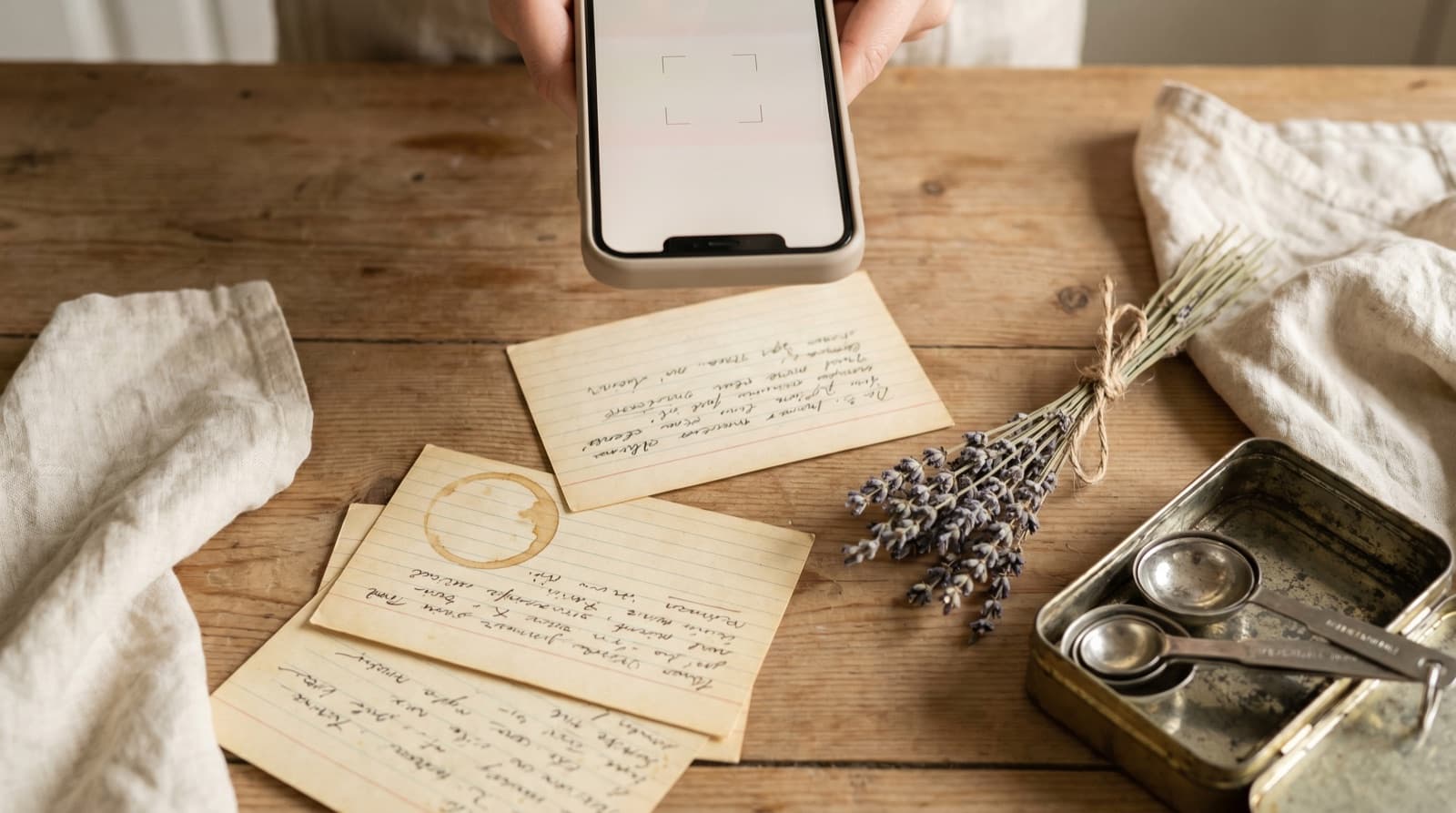
Clearing the Tab Backlog
If you already have a collection of open recipe tabs, the most practical approach is a one-off import session:
- Open each recipe tab in turn on your desktop browser.
- Copy the URL and paste it into Pantree (or use AirDrop or the universal clipboard if you are on Mac + iPhone to send the URL directly to your phone).
- Once the recipe is imported into Pantree, close the tab.
- Repeat until the tab bar is clear.
For a backlog of 20 to 30 tabs, this takes about 15 minutes. The result is a clean browser and a recipe library you can actually search and cook from. It is the kind of digital kitchen declutter that immediately makes cooking feel less chaotic.
What You Actually Get Once It’s in Pantree
Every recipe imported from a URL becomes a full entry in your Pantree library with the same capabilities as a manually added recipe:
- Ingredient search. Find every recipe that uses a specific ingredient, regardless of which website it originally came from. When you have courgettes to use up, search “courgette” and see every relevant recipe in your library at once.
- Automatic scaling. The recipe that serves four can be scaled to two or eight with a tap, with all quantities recalculated.
- Shopping list generation. Select the recipes you want to cook this week and Pantree generates a combined shopping list, consolidated by ingredient. No rereading five browser tabs to build a supermarket run.
- Cook mode. Step through the recipe one instruction at a time on your phone without the browser auto-dimming, ads loading mid-scroll, or a newsletter pop-up obscuring the method.
- It survives browser changes. Reinstalling Chrome, switching from Safari to Firefox, buying a new laptop — your Pantree library is unaffected. The recipes are in the app, not in a browser session.
The Broader Pattern
Browser tabs are one manifestation of a wider recipe fragmentation problem. The same recipes that pile up in tabs also arrive via TikTok, Instagram, email newsletters, and Reddit threads — each with its own reason the recipe will eventually disappear or become impossible to find. Browser tabs are perhaps the most fragile of the lot: a single crash or session clear and they are gone with no recovery path.
The fix is the same in every case: get the recipe out of the ephemeral source and into a library you own before the source evaporates. For browser tabs, the window between “I want to cook this” and “I’ve lost this forever” can be as short as a browser update that restarts automatically in the middle of the night.
Import it now. Close the tab. Cook it when you are ready. That is the whole system.
Frequently Asked Questions
Can I import a recipe URL directly into Pantree?
Yes. In Pantree, tap the + button, choose 'Import from URL', paste the address of any recipe page, and Pantree fetches the page, extracts the ingredients and steps, and creates a structured recipe in your library. It works with the vast majority of food blogs, major recipe sites, and newspaper cooking sections. If a site blocks automated scraping, the paste-text method works as a fallback: open the page in your browser, select all text, copy, and paste into Pantree's manual text import.
Will bookmarking a recipe page in Chrome or Safari count as saving it?
Bookmarking saves the URL, not the recipe. You will still need to open the page to see the recipe, and if the site goes offline, changes its URL structure, or puts the recipe behind a paywall, your bookmark becomes a dead link. More practically, browser bookmarks have no ingredient search, no scaling, and no shopping list — they are a navigation shortcut, not a recipe library. Moving the recipe into Pantree gives you a permanent, structured copy independent of the original page.
What if a recipe page I had bookmarked is now a 404?
If the original URL is gone, try pasting it into the Wayback Machine (web.archive.org) — the Internet Archive often has a cached copy of food blog posts, even ones that have been deleted. If you can find the cached version, copy the recipe text and paste it into Pantree's text import. If the page is completely gone and you have no cached version, the recipe is lost — which is why importing recipes into Pantree before the tab closes is the safer strategy.
Is there a way to save recipe tabs from my phone browser to Pantree?
On iPhone, open the recipe page in Safari, tap the Share button (the box with the arrow), and scroll through the share sheet to find Pantree. If Pantree appears in your share sheet, you can send the URL directly to the app. Alternatively, copy the URL from the address bar and paste it into Pantree's URL import. On Android, use the browser's Share option and select Pantree, or copy the URL and paste it manually. The Pantree share extension is available on iOS.
How many browser tabs is too many for recipes?
Practically speaking, anything more than five to ten open recipe tabs is already unmanageable — by the time you have 30 open, you cannot remember what each one is without clicking through each tab. The real problem is not the number of tabs but the action gap between 'I want to cook this' and 'I have actually saved this somewhere reliable.' Import a recipe the moment you decide it is worth cooking, and close the tab. Your future self will not want to excavate a 50-tab browser session to find it.
Can I save recipes from paywalled sites like NYT Cooking?
If you have a subscription to a site like NYT Cooking, you can open the recipe while logged in, select and copy the recipe text, and paste it into Pantree's text import. The copy is yours for personal use. If you do not have a subscription and the recipe is behind a hard paywall, you will not be able to access the text in the first place — but the same copy-and-paste method works once you can see the content.
Stop losing recipes when you close the tab.
Paste any recipe URL into Pantree and get a structured, searchable recipe with a shopping list — saved in your library permanently, independent of the original website. Free on the App Store.