How to Save Recipes from Slack & Microsoft Teams (Before the History Disappears)
Every large company has a #food channel. Remote teams share recipes as icebreakers, WFH home cooks trade weeknight dinners, someone always posts the lamb shoulder they made on Sunday. Then Slack free-plan history cuts off at 90 days, or Teams message history scrolls out of reach, and the recipe is effectively gone. Here’s how to keep what gets shared before it disappears.
The #Food Channel Problem
Work messaging apps were not designed for recipe management — they were designed for project coordination. But humans are humans, and every team of any size eventually develops an informal food culture inside its chat tool. #food, #lunch, #what-are-we-cooking, or just the general channel where someone breaks the work thread to post a photo of what they made last night.
This is fine, and in fact one of the better uses of the format: recipe recommendations from people whose taste you know and trust tend to land better than algorithmic suggestions from a recipe site you’ve never heard of. When your colleague who cooks seriously posts a link to a roast chicken method, that carries weight a faceless recipe blog does not.
The problem is structural. Slack and Teams are chronological chat streams — the architecture is designed around the present, not around retrieval. Search works reasonably well for recent messages and exact text matches, but “that pasta recipe someone shared a few months ago” is not an exact text match. And for Slack workspaces on the free plan, “a few months ago” is likely already beyond the 90-day visibility window.
Slack’s 90-Day History Limit
Slack’s free plan shows only the most recent 90 days of message history per workspace. Messages older than that are not deleted — they remain on Slack’s servers — but they are inaccessible without upgrading to a paid plan. In practice, this means any recipe posted in January is invisible in April on a free-tier workspace, and there is no way to retrieve it short of the original poster re-sharing it or your workspace paying for Slack Pro.
Many small teams, side projects, and community Slack groups run on the free plan indefinitely. If your recipe community, local food group, or informal work kitchen chat lives in a free Slack, the 90-day cutoff is a real and recurring loss.
Paid Slack plans retain full history and offer better search, but even there the fundamental problem persists: Slack is a chat tool, not a recipe library. A recipe saved as a Slack message has no ingredient scaling, no shopping list, no way to cook-mode it on your phone while standing at the hob. It’s text in a thread, and text in a thread is not a functional recipe.
Microsoft Teams: History Without Organisation
Microsoft Teams behaves differently from Slack on retention — most Microsoft 365 business plans retain chat history by default, and the architectural assumption is permanent storage unless an IT policy says otherwise. So “90 days and gone” is largely a Slack free-plan problem, not a Teams one.
What Teams shares with Slack, however, is the retrieval problem. Teams chat is a chronological stream. Even with full history, finding a specific recipe message in a high-volume general channel requires either exact search terms or memory of roughly when it was posted. Search in Teams is functional but not precise for content within messages — searching “roast chicken” will return messages that include that phrase, but a recipe shared as a link will not surface unless the message text included those words. And a recipe your colleague typed out in full — a family recipe shared as text — requires that you search specific ingredient names or phrases you may not remember.
More critically, Teams message history is subject to your organisation’s retention policies, which IT departments set and which individual users typically cannot see or adjust. Many organisations apply 1-year or 3-year retention limits on Teams chat for compliance or storage reasons. A recipe shared three years ago may simply not exist anymore under such a policy, regardless of the plan tier.
What Gets Shared in Work Chats (and Why It’s Worth Keeping)
The kinds of recipes that circulate in work chat tend to be different from what you find on recipe aggregators. They are personal — a version of a dish someone has made a dozen times and refined, a family recipe passed on properly, a restaurant meal someone reverse-engineered at home. They come with the implicit endorsement of a person you know, which is worth something.
Recipe links shared in Slack or Teams are also frequently from smaller food blogs and personal sites that don’t rank highly in recipe search engines but produce excellent food. If a colleague who cooks well shares a link from a site you’ve never heard of, that link is more likely to lead to something genuinely good than the top result for the same dish on Google. These are exactly the kinds of recipes you want to keep, and exactly the kind that get lost because the sharing context is ephemeral.
How to Save a Recipe Shared as a Link
This is the straightforward case and covers the majority of recipe sharing in most channels: someone posts a URL to a recipe website, a food blog, or a video.
Copy the URL from the Slack or Teams message. In Pantree, tap + → Import from URL and paste it. Pantree fetches the recipe from the source page — the large majority of recipe sites, food blogs, BBC Good Food, Serious Eats, Smitten Kitchen, and so on — and saves it as a structured entry with scaled servings and an automatically generated shopping list. The whole process takes about 15 seconds. The recipe is then in your Pantree library permanently and is not affected by anything that happens to the Slack or Teams message.
If the link is to a YouTube recipe video, the same URL import works for the recipe if it’s in the video description — which most cooking channels include. If not, see the guide to saving YouTube recipes for the screenshot and manual entry approach.
How to Save a Recipe Typed Directly in a Message
Typed recipes in chat messages are the harder case: no URL to import, no structured source. They are also often the most valuable — the precise method a colleague worked out for a specific dish, the adaptation they tested over several weekends, the recipe written from memory that doesn’t exist anywhere else.
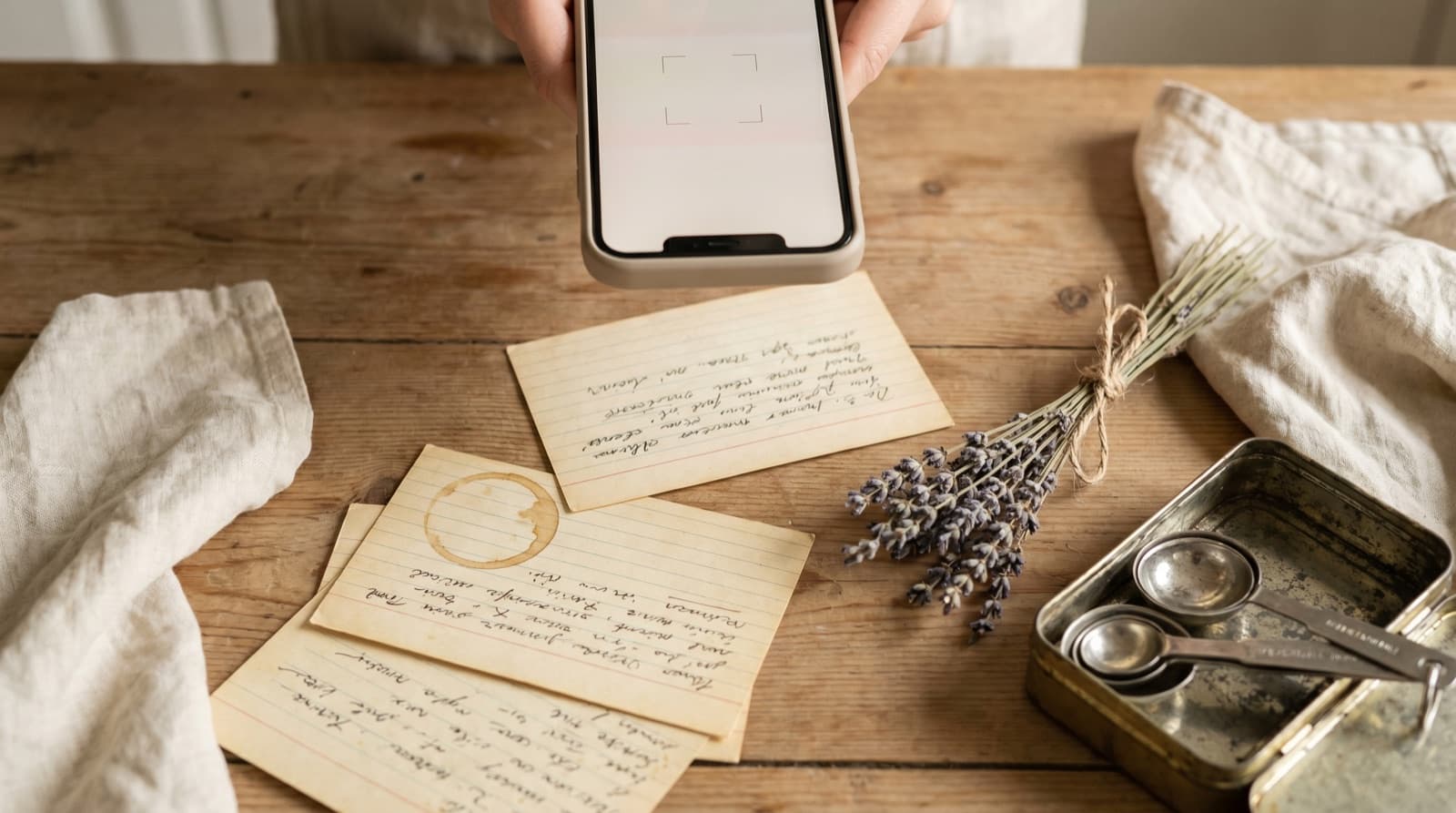
The fastest method: screenshot the message thread so the ingredient list and full method are visible. In Slack, you may need to expand the thread or scroll to capture both; Teams sometimes requires multiple screenshots for long messages. Then in Pantree, tap + → Import from Photo and select the screenshot. Pantree’s image parser reads ingredient quantities, units, and names from the screenshot and structures them as editable fields. Most conversationally written recipes — even ones with informal measurements like “a good glug of olive oil” — parse accurately in one pass, though you can tidy any field that comes through oddly.
For short recipes, copy-pasting the message text into Pantree’s manual entry screen (+ → Add Recipe Manually) and formatting it there is also effective and takes two or three minutes. If the recipe is genuinely well-written, this produces a cleaner result than a screenshot import and gives you the chance to add a title and note the source.
Slack’s Save Feature: A Good First Step, Not a Final Destination
Slack has a native bookmark-like feature — the save icon on any message — that creates a personal saved-items list accessible from the sidebar. If you see a recipe posted in a Slack channel and you’re not immediately at a point where you can import it properly, saving the message is a reasonable temporary holding action. You can then work through your saved items and import the ones worth keeping.
The caveats: saved items in Slack are not categorised or searchable beyond the general saved-items list, and they do not survive the 90-day history cutoff on free plans — if the message itself becomes inaccessible, the saved link to it does too. Saved items are also personal and do not sync across devices in all Slack client versions. Treat Slack’s save function the way you would browser tabs: useful for capturing the intent, not useful as a permanent library.
Teams has a similar Save message function (the bookmark icon on a message in Teams) that creates a saved messages list in the app. The same principle applies: it is a triage tool, not a recipe library. Save the message immediately to avoid losing it, then import it into Pantree properly when you have a moment.
The Right Habit: Save Immediately
The consistent theme across every ephemeral recipe source — iMessage, Telegram, Discord, and now Slack and Teams — is that the moment of loss is rarely obvious. You don’t get a notification saying “your 90-day history window closes tomorrow.” The recipe is simply there one week and gone the next, and you remember it only when you want to cook it.
The habit that prevents this is saving at the point of seeing, not the point of wanting. When someone posts a recipe that looks worth making, copy the URL or screenshot it immediately — before the conversation moves on, before you switch channels, before the message scrolls out of view. The 15 seconds it takes to import a URL into Pantree is trivial when the recipe is in front of you. It is impossible when the message has rotated out of history.
This is also the right approach for recipes shared in Signal and WhatsApp, where message history depends on backup settings and device changes you don’t always control. Chat apps are not recipe archives. They are momentary — and the best time to get a recipe out of one is as soon as you see it.
Frequently Asked Questions
How long does Slack keep message history on the free plan?
Slack's free plan displays the most recent 90 days of message history per workspace. Messages older than 90 days are not deleted — they are archived on Slack's servers — but they become inaccessible unless the workspace upgrades to a paid plan. In practice, this means a recipe someone posted in #food in January will not be visible to a free-plan workspace by April. Paid Slack plans retain full history indefinitely, but the recipe is still in an unsearchable, unstructured format: a block of text in a message thread, with no ingredient scaling or shopping list.
Does Microsoft Teams keep recipe messages permanently?
Microsoft Teams does not impose the same history limits as Slack's free tier — chat history on Teams is generally retained according to your organisation's data retention policy, which for Microsoft 365 Business plans defaults to keeping messages indefinitely. However, retention policies set by your IT department can delete or archive Teams messages on a schedule you may not control. More practically: even with full history retained, Teams chat is a chronological stream with limited search for specific message content. Finding a recipe someone shared six months ago in a large channel is impractical even if the message technically still exists.
Can I use Slack's saved items or bookmarks for recipes?
Slack's Save feature (the bookmark icon on a message) creates a personal saved-items list you can access from your sidebar. This is useful as a temporary holding area — if someone posts a recipe and you save the message, you can retrieve it later. The limitations are: saved items have no categories or folders, there is no ingredient search, and the recipe is still just a block of text in a message thread. Saved items also disappear entirely if you lose access to the workspace or the message is deleted by the sender or by workspace retention policies. Saved items are a good first step; they are not a recipe library.
How do I save a recipe link shared in Slack or Teams?
If someone shared a recipe as a URL — a link to a recipe website — copy that URL and paste it into Pantree via + → Import from URL. Pantree fetches the recipe from the source page and saves it as a structured entry with scalable servings and a shopping list, in about 15 seconds. The recipe is then in your Pantree library permanently, regardless of what happens to the original Slack or Teams message.
What if the recipe was typed directly into the chat message?
For recipes that someone typed out in full in a Slack or Teams message — a family recipe shared in full text, a quick adaptation, a 'here's what I made' post — screenshot the message so the ingredient list and method are visible, then use Pantree's camera import via + → Import from Photo. Pantree's image parser reads ingredient quantities, units, and names from the screenshot as structured fields. Alternatively, copy the message text and paste it into Pantree's manual entry screen (+ → Add Recipe Manually) and tidy it up from there; a well-formatted chat recipe usually takes about two minutes.
Is there a way to automatically save recipes from a Slack channel?
Slack has a Workflow Builder for paid plans that can trigger actions on new messages matching certain criteria — for example, any message in #food containing a URL. You could build a workflow that posts those URLs to a connected service. In practice this is considerable setup for marginal gain. The simpler habit: when you see a recipe you want in Slack or Teams, save it immediately rather than relying on history. Copy the URL into Pantree or screenshot it — the 15 seconds it takes now prevents the indefinite loss later.
Don’t let work chat recipes scroll away.
Paste any recipe URL into Pantree and it becomes a structured, scalable, shoppable recipe in a library you own — not dependent on Slack history limits or Teams retention policies. Free on the App Store.