How to Save Recipes from Paprika App (Before You Switch)
Paprika is one of the best-loved recipe apps on the market — it has been around since 2011, it works offline, and its loyal user base will tell you it transformed how they cook. The problem arrives the moment you want to leave. Paprika’s export format is readable only by Paprika itself, which means your recipe library is effectively trapped inside the app until you know the right way out.
Why Paprika Became the Home for So Many Recipe Libraries
Paprika launched in 2011 as one of the first apps to do recipe clipping properly: browse a recipe page in Paprika’s built-in browser, tap “Save Recipe”, and the app parsed the ingredient list and instructions out of the HTML automatically. For the better part of a decade, this was significantly better than anything else on iOS and Mac.
The result is that a large number of home cooks built serious libraries inside Paprika — hundreds of recipes accumulated over years, many of them from sites that have since changed paywalls, moved URLs, or disappeared entirely. Paprika became the primary recipe storage layer for a generation of organized home cooks, the same way Evernote did for general notes or Notion did for knowledge management.
Paprika 3, released in 2019, moved to a subscription model — US$4.99/year on iOS. For some users the price is trivial; for others it prompted a reassessment of whether Paprika was still the right tool. A growing number of users have started looking at alternatives that offer better mobile UX, a more active development pace, or stronger shopping-list integration. And that is when they discover the export problem.
The Export Problem: What .paprikarecipes Actually Is
Paprika exports recipe libraries in its own format: a file with the .paprikarecipes extension. Under the hood, this is a ZIP archive containing one JSON file per recipe. The JSON fields are specific to Paprika — “name”, “ingredients”, “directions”, “servings”, “source”, and so on — but Paprika has never published a formal specification or released the format as an open standard.
No major competing recipe app ships an “import from Paprika” feature. The format exists as a backup and device-to-device transfer mechanism within the Paprika ecosystem, not as a portability layer out of it. Export your library and you have a .paprikarecipes file that Paprika can restore — and that nothing else can open.
Paprika also offers an HTML export, which generates a human-readable web page for each recipe. HTML export looks better than it performs: the ingredient list is rendered as text — “300g chicken thigh, diced” — rather than as structured data with separate quantity, unit, and ingredient fields. No recipe app accepts HTML as an import format in a way that preserves the structure you need for scaling and shopping lists. The HTML is useful for printing; it is not useful for migration.
This puts Paprika users in the same position as users of NYT Cooking, Kindle cookbooks, or AllRecipes and Yummly: the recipes exist inside a system that was not designed with portability in mind, and the official exit routes don’t actually lead anywhere useful.
How to Get Your Paprika Recipes Into Pantree
The right method depends on how the recipe got into Paprika. The good news is that Paprika stores source URLs — and most recipes in a typical Paprika library came from a website.
Recipes clipped from a website (the majority of most libraries): Open the recipe in Paprika and look at the details panel. There will be a “Source” field with the original URL — BBC Good Food, Serious Eats, AllRecipes, Bon Appétit, and any other site where Paprika’s in-app browser clipped the recipe. Copy that URL and paste it into Pantree via + → Import from URL. Pantree fetches the current version of the recipe directly from the source page and saves it as a structured entry with quantities, scalable servings, and complete steps. This takes about 15 seconds per recipe. A Paprika library of 80 clipped recipes can be migrated in an afternoon.
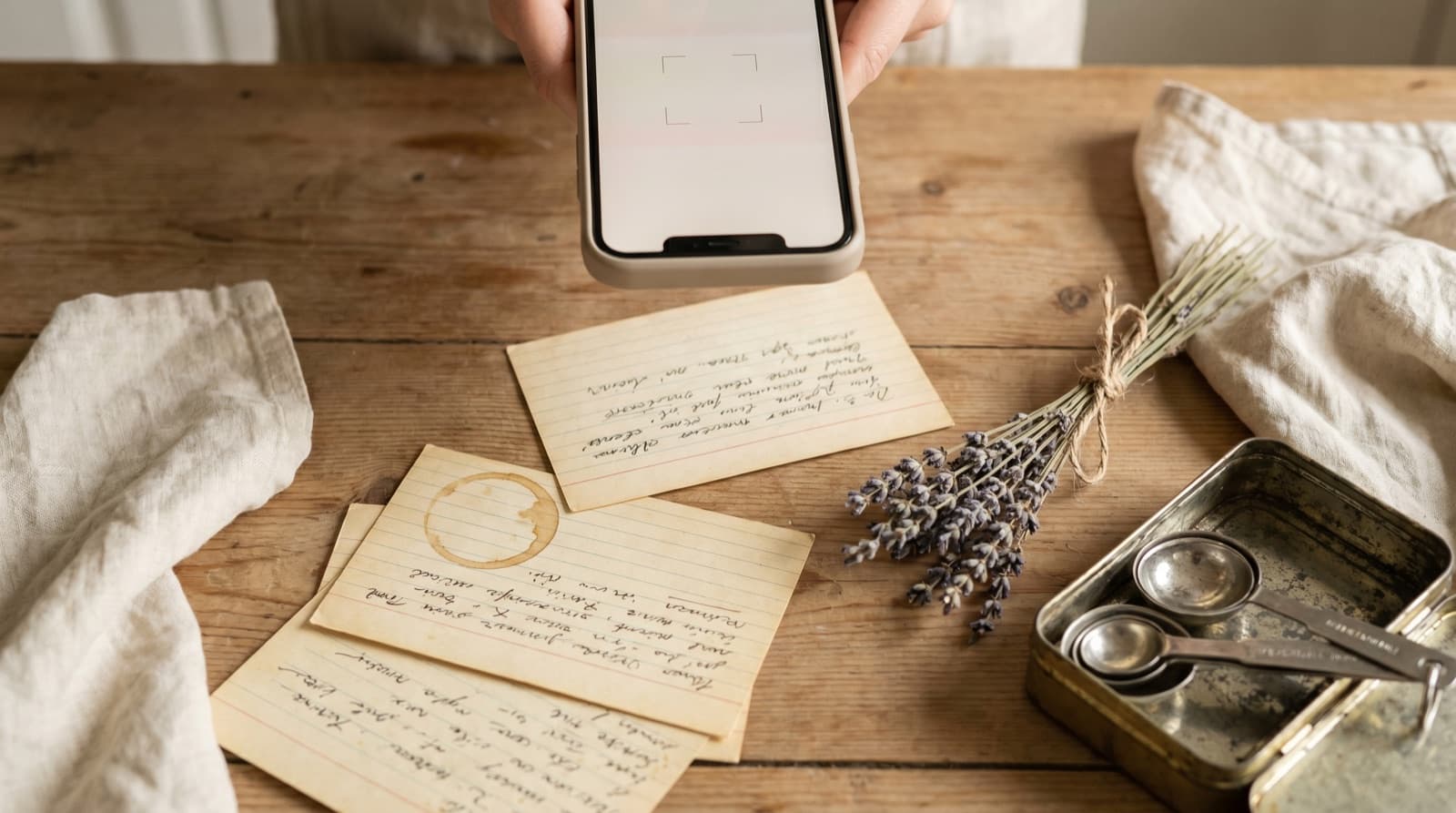
Recipes you typed manually or adapted from a book: Screenshot the Paprika recipe screen — make sure the ingredient list is fully visible — and import via + → Import from Photo in Pantree. Pantree’s image parser reads the ingredient list and method from the screenshot and extracts quantities, units, and ingredient names as structured fields. For most home-cook recipes this is accurate in one pass. Very long recipes with multiple component sections (a sauce, a brine, and a dry rub, say) occasionally need a check on the quantities, but a full manual re-entry is almost never necessary.
Recipes from sites that have since disappeared or moved behind paywalls: Paprika may have saved the full recipe text even if the original URL no longer resolves. In this case, the URL import will fail — Pantree won’t be able to reach the original page. Fall back to the screenshot method: screenshot the Paprika recipe screen (which still has the saved content) and use camera import.
Recipes you created from scratch in Paprika: Same approach as manually typed recipes — screenshot and camera import. Alternatively, if the recipe is short enough to re-enter quickly, tapping + → Add Recipe Manually in Pantree and typing it in directly takes less than two minutes for a typical recipe.
Prioritising a Large Paprika Library
Most Paprika users are not going to migrate their entire library in one sitting, and they shouldn’t try to. A library of 200 recipes accumulated over five years contains roughly 20 recipes you cook regularly, 80 you made once, and 100 you saved with genuine intentions and have never opened. Migrating all 200 is not the goal.
The practical approach: in Paprika, sort your recipes by “Date Modified” or filter by “Cooked” if you’ve been marking meals. The recipes you’ve actually made are almost always the most recently modified ones. Migrate those first — probably 20 to 30 recipes. After that, migrate on demand: when you want to cook something specific, search Paprika, find the recipe, copy the source URL, and import it into Pantree. The library transfers itself as you cook from it, without a dedicated migration session.
This is the same strategy that works for Notion and OneNote migrations: the recipes you actually cook are the ones worth migrating, and you know which those are only when you want to cook them.
What Paprika Does Well (and What It Doesn’t)
Paprika’s recipe clipper remains one of the most accurate in the business — it handles unusual recipe page layouts better than most competitors. Its offline-first design is genuinely useful if you cook in a signal-dead kitchen. And the Mac and Windows desktop apps give it a cross-platform desktop presence that iOS-only apps can’t match.
Where Paprika shows its age is on the mobile side. The interface has had only incremental updates since Paprika 3 launched in 2019. The grocery list feature is functional but does not automatically aggregate quantities across recipes. Meal planning works but doesn’t generate a combined shopping list from a week of planned meals. These are table-stakes features for modern recipe apps, and they’re the areas where the gap between Paprika and newer apps is widest.
If you cook from your phone and expect the shopping list to update automatically when you change serving sizes, Paprika will frustrate you. If you primarily use the Mac app and want a recipe archive with strong clipping, Paprika may still be the right tool for the clipping layer, with Pantree handling the active cooking library.
The Portability Lesson
Paprika is not uniquely guilty here. Almost every recipe app — from NYT Cooking to Yummly to dedicated apps like Paprika — has built a recipe storage format that is optimised for staying inside the app rather than leaving it. This is not necessarily malicious; it reflects the economics of building software where the recipe library is the primary retention mechanism.
The consequence for the user is the same regardless: years of accumulated recipes in a format that requires a non-obvious exit strategy. The exit strategy for Paprika is straightforward once you know it — source URL first, camera import second — and neither requires technical knowledge or a third-party tool. The library is not gone. It just needs moving.
Frequently Asked Questions
Can I export my recipes from Paprika to another app?
Paprika exports in two formats: .paprikarecipes (a proprietary ZIP of JSON files) and HTML. The .paprikarecipes format is technically readable — it is a ZIP archive containing one JSON file per recipe — but no major recipe application ships an 'import from Paprika' feature. HTML export produces human-readable pages but strips the structured data, so ingredients become a paragraph rather than a list of quantities and names. There is no direct migration path from Paprika to another recipe app via export.
Does Pantree import .paprikarecipes files?
Not via a file upload. The practical alternative is URL import: for any recipe in Paprika that originally came from a website, find the source URL (Paprika stores it in the recipe details panel under 'Source') and paste it into Pantree via + → Import from URL. Pantree fetches the recipe directly from the source — BBC Good Food, AllRecipes, Serious Eats, NYT Cooking, and most major recipe sites — and saves it as a structured entry in about 15 seconds. For recipes you typed manually, Pantree's camera import reads a screenshot or photo of the recipe and extracts the ingredient list and steps as structured data.
What's the fastest way to migrate a large Paprika library?
Start with source URLs. In Paprika, open each recipe and check the 'Source' field in the details panel — most recipes clipped from the web will have the original URL there. Copy that URL and paste it into Pantree via + → Import from URL. A section of 50 web-clipped recipes can be migrated in under two hours. For recipes without a source URL (typed manually, adapted from books, or created from scratch), use Pantree's camera import: screenshot the Paprika recipe screen and import via + → Import from Photo. Prioritise the recipes you actually cook regularly; you can migrate the rest as you need them.
I have custom recipes I typed into Paprika. How do I move them?
Pantree's camera import handles these well. Open the recipe in Paprika, scroll so the ingredient list is fully visible, and take a screenshot. Then in Pantree, tap + → Import from Photo and select the screenshot. Pantree's image parser reads the ingredient list and method from the screenshot and reconstructs the recipe as structured data — quantities, units, and ingredient names — without manual re-entry. For recipes longer than one screen, take two screenshots and import each. A correction or two on unusual measurements is occasionally needed, but for most home-cook recipes the import is accurate in one pass.
Why is Paprika's export format only readable by Paprika?
Paprika exports to .paprikarecipes, which is a ZIP archive containing JSON files — technically open formats. But no competing recipe app has implemented an import parser for this format, because it has never been adopted as a standard. The JSON structure Paprika uses is specific to Paprika's own data model, and without a published specification other apps would need to reverse-engineer it. This is the same position as most proprietary recipe app formats: the data is technically accessible but practically locked in.
Should I keep Paprika or switch entirely to Pantree?
Paprika's strengths are its long-standing Mac and desktop client, its offline-first approach, and its large community of loyal users. If you cook primarily at a desktop and value a one-time-purchase history (Paprika 2 was a one-time purchase), keeping it for desktop use while adding Pantree as your primary mobile cooking app is a reasonable split. If you're on Paprika 3's subscription and finding the cost-to-value ratio isn't there — particularly if you mostly cook from your phone — migrating fully to Pantree and cancelling makes practical sense. The migration itself takes an afternoon for a typical library of 50–100 recipes.
Your Paprika recipes deserve a portable home.
Import any recipe URL into Pantree and it becomes a structured, scalable, shoppable entry in a library you own — scaling, shopping lists, and ingredient search included. Free on the App Store.