How to Save Recipes from Evernote (Before Your Notes App Buries Them)
For a solid decade, Evernote was the default answer to “how do I save recipes?” The web clipper was genuinely excellent. You could clip a BBC Good Food page, tag it “chicken” and “weeknight”, and find it again six months later. Many people built enormous recipe archives this way. The problem is that Evernote stores those recipes as notes. Not as recipes. And the difference matters every time you try to cook from them.
Why Evernote Became Everyone’s Recipe Box
When Evernote launched its web clipper in 2010, it solved a real problem. Recipe websites were (and still are) cluttered, slow, and prone to disappearing behind paywalls. The clipper let you save a clean copy of any recipe page — full layout, images, ingredient list, instructions — to a notebook you owned, with no dependency on the source site staying online.
The tag system was genuinely useful. A well-maintained Evernote recipe notebook with tags for cuisine, protein, difficulty, and cooking time could surface recipes faster than most dedicated recipe apps of the era. And because Evernote was cross-platform, your recipe archive synced from laptop to phone without any effort.
By 2015, Evernote had become one of the most popular recipe management tools on the internet — not because it was built for recipes, but because it was flexible enough to serve as one. Some people built notebooks of 500 recipes or more. Those archives are still sitting in Evernote accounts today.
The Problem: Notes Are Not Recipes
A clipped recipe in Evernote is a snapshot of a web page. The ingredient list is a block of text. “250g plain flour” lives in the note as a string — Evernote has no concept of a quantity (250), a unit (g), or an ingredient (plain flour) as separate, structured data fields.
This distinction is invisible until you try to do something that requires structure. Scale the recipe from 4 to 8 servings: you need to read every ingredient line and do the arithmetic yourself. Build a shopping list from three recipes: copy-paste from three notes into a fourth, manually deduplicating “2 garlic cloves” where it appears in two of them. Search for recipes that use a specific ingredient: possible only if you’ve tagged every recipe meticulously, which most people do for the first twenty recipes and then abandon.
A recipe app like Pantree models ingredients as structured objects. It knows that “250g plain flour” has a quantity (250), a unit (grams), and a name (plain flour). Change the serving size from 4 to 8 and every quantity updates automatically. Add three recipes to a meal plan and the app generates a single combined shopping list with duplicate ingredients merged and quantities summed. Search “chicken thigh” and every recipe containing it appears, without any manual tagging. Evernote’s recipe archive contains this information — it just can’t use it.
What Evernote’s Export Actually Gives You
Evernote exports notes in two formats: ENEX (a proprietary XML format) and HTML. Neither is useful for migrating recipes to a cooking app.
ENEX files encode each note as an XML blob. The content of a recipe note — ingredients, steps, notes — sits inside a content element as HTML fragments. You can open an ENEX file in a text editor and read the recipe, but no recipe app accepts ENEX as an import format. Parsing the XML to extract structured ingredient data would require a custom script, and even then the ingredients are text strings that no parser can reliably convert into quantities, units, and ingredient names.
HTML export produces a folder of HTML files — one per note. These are readable in a browser and technically portable, but again: they are formatted text, not structured recipe data. This puts Evernote in the same category as a Notes app full of pasted recipes or a Google Docs recipe folder — readable, searchable by keyword, and completely unusable as the basis for scaling or shopping.
The Evernote Free-Plan Cliff
There’s a second reason to move your recipes out now. In 2023, Bending Spoons acquired Evernote and significantly restructured the product. The free plan was cut from unlimited notes to 50 notes and one notebook. If you have more than 50 recipes in Evernote — and anyone who used the web clipper seriously almost certainly does — you’re either paying for a subscription or sitting on an archive you can read but not expand.
The cost of an Evernote Personal subscription is roughly £7.99 per month as of 2026. A recipe app subscription is in the same range, and gives you tools built for cooking that Evernote never will. The case for maintaining an Evernote subscription purely to store recipes is essentially zero.
How to Move Evernote Recipes to Pantree
The right method depends on how the recipe got into Evernote in the first place.
Clipped from a website (the majority of cases): Evernote’s web clipper stores the original URL in the note metadata — look for a “Source URL” field in the note info panel on desktop. Copy that URL and paste it into Pantree via + → Import from URL. Pantree fetches the recipe directly from the source page — AllRecipes, BBC Good Food, Serious Eats, NYT Cooking, or most other recipe sites — and saves it as a structured entry: ingredients with quantities and units, scalable serving size, and complete steps. This takes about 15 seconds per recipe. A notebook of 60 clipped recipes can be migrated in under two hours, working through them batch by batch.
Typed or pasted manually: Use Pantree’s camera import. Open the note in Evernote, screenshot the full content, and import via + → Import from Photo. Pantree’s image parser reconstructs the ingredient list and steps from the screenshot — extracting quantities, units, and ingredient names without manual re-entry. For most recipes this works well. Very long recipes with multiple sauce or component sections may need a correction or two.
Saved as a link with a brief note: Treat these as clipped recipes. The link is the source URL. Paste it into Pantree’s URL import and Pantree handles the rest.
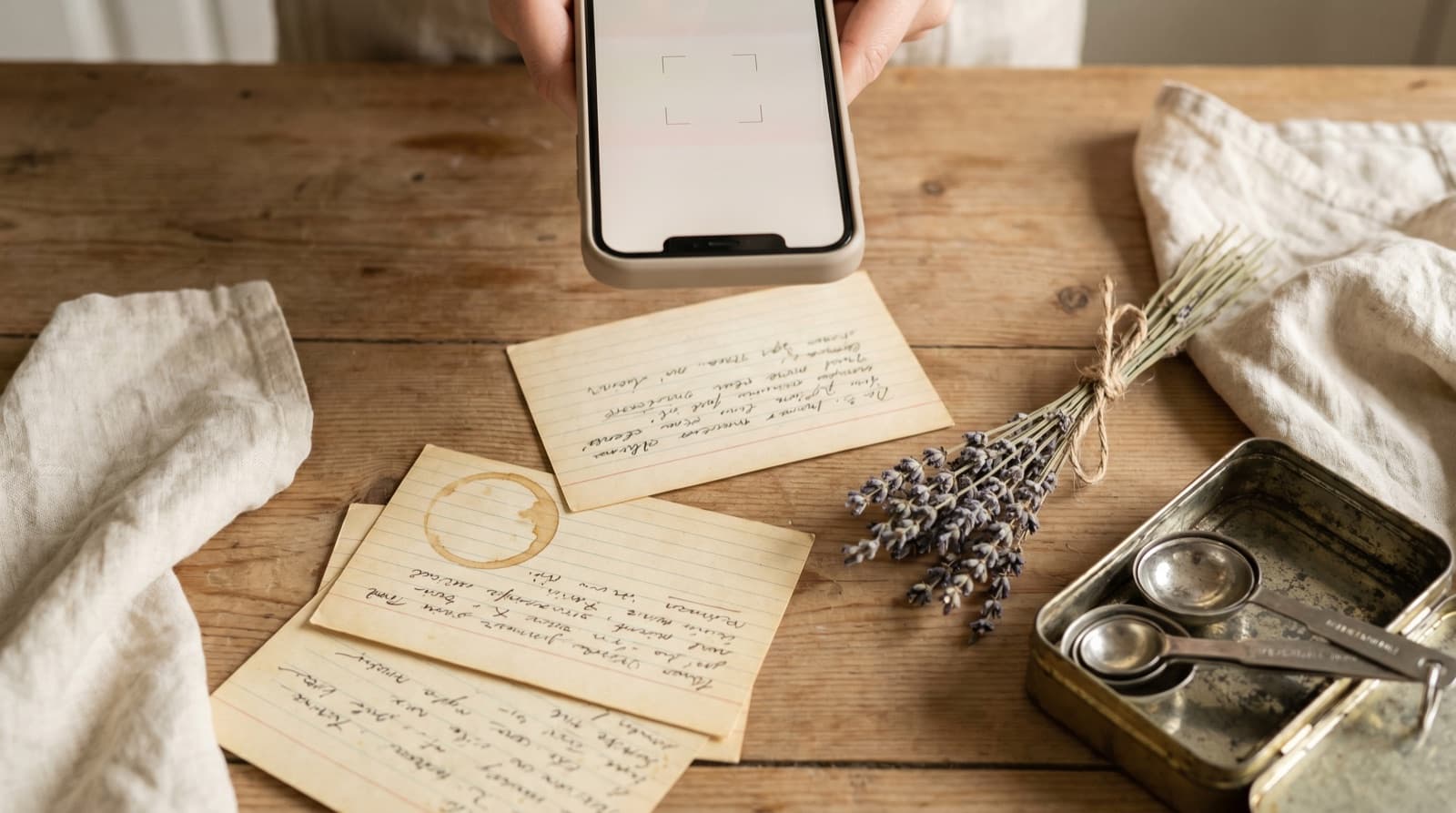
Photos of recipe cards or magazine pages: Camera import covers these directly. Take a fresh photo (or use the one in Evernote) and import it via + → Import from Photo. Pantree reads the text from the image and reconstructs the recipe structure. This is the same workflow as photographing a cookbook page — the source happens to live in Evernote rather than on paper.
Prioritising the Migration
A large Evernote recipe notebook — 100 recipes or more — is not a single-session migration. The practical approach is to start with the recipes you actually cook.
Open your Evernote recipe notebook sorted by “Updated” (most recently modified first). The top twenty recipes are almost certainly the ones you cook regularly. Migrate those first. After that, work through the rest when you want to cook something specific — search your Evernote archive, find the recipe, import it into Pantree, and cook from Pantree. The archive migrates itself over time, recipe by recipe, as you use it.
Recipes you clipped five years ago and haven’t opened since are not worth migrating at all. The real value of a recipe archive is not the size of the collection. It’s the fraction of recipes in it that you cook from repeatedly. If you have 300 Evernote recipes and cook from 40 of them, migrate the 40. Archive the rest or delete them.
What to Keep in Evernote
Evernote is still genuinely useful for the planning and curation layer. Notes from a cooking experiment (“used anchovy paste instead of fish sauce — worked”), links to recipes you want to try, event menus from dinner parties, grocery budget tracking, food blog reading lists — these benefit from Evernote’s flexible note format and tag system.
The mistake is using Evernote as your primary cooking library. Move the execution layer — the recipes you cook from — into a dedicated app. Keep Evernote as an inbox and reference archive if you want to. The two coexist perfectly well. Evernote as a research and inspiration layer; Pantree as the place where recipes become dinner.
The Evernote web clipper was a genuinely great tool for its era. It just saved recipes into the wrong kind of container. The fix is fifteen seconds and a URL.
Frequently Asked Questions
Can I export my Evernote recipes into a recipe app?
Not directly. Evernote exports notes as ENEX files (XML) or HTML, and both formats encode recipes as free-form text — the ingredient list is a paragraph, not a structured list of quantities and ingredient names. No recipe app accepts ENEX as an import format, and parsing the exported HTML is not reliable enough for ingredient scaling. The fastest route is to re-import each recipe via its original URL (if you clipped it from a website) or via Pantree's camera import for notes you typed manually.
My Evernote free plan now only allows 50 notes. Should I move my recipes?
If you have more than 50 recipes in Evernote, you're already above the free-plan limit introduced after Bending Spoons acquired the company in 2023. You can still access your existing notes but you can't create new ones on the free tier. Moving your most-used recipes to a dedicated app — and keeping only a small planning notebook in Evernote — is the path most people land on. You get the execution layer (scaling, shopping lists, ingredient search) in a purpose-built app, and Evernote remains a notes archive if you want it.
What's the quickest way to move a large Evernote recipe notebook to Pantree?
Batch by source URL first. Most recipes in Evernote were clipped from websites — AllRecipes, BBC Good Food, Serious Eats, and so on. Export your notebook as HTML, open each note, find the source URL (Evernote web clipper stores the original URL in the note header), and paste it into Pantree via + → Import from URL. Pantree fetches the structured recipe data from the original page — ingredients with quantities, steps, serving size — in about 15 seconds per recipe. A notebook of 50 clipped recipes can be migrated in under an hour.
What about recipes I typed directly into Evernote?
Use Pantree's camera import. Open the recipe note in Evernote, take a screenshot of the full note, then import via + → Import from Photo in Pantree. Pantree's image parser extracts the ingredient list and steps from the screenshot and reconstructs the recipe as structured data — quantities, units, ingredient names — without manual re-entry. For short recipes, this takes about 30 seconds. For longer recipes with multiple sections, you may need to make one or two corrections to unusual measurements.
Is Evernote's web clipper good for recipes?
For archiving, yes. Evernote's web clipper is still one of the best tools for capturing a recipe page exactly as it appears — it saves the full page, images, and all, in a searchable note. For cooking, no. A clipped recipe is a flat image of a recipe, not a structured recipe you can scale or shop from. The clip captures everything except the functional layer: the fact that '2 cups flour' is a quantity, a unit, and an ingredient that needs to multiply when you change the serving size. That's the gap a dedicated recipe app fills.
What should I keep in Evernote versus move to a recipe app?
Evernote is well suited to the curation layer: recipes you've bookmarked to try eventually, notes from cooking experiments, links to food blogs, menu planning documents, grocery budget logs. These benefit from Evernote's flexible note-taking and tag system. A recipe app like Pantree handles the execution layer: the active library you cook from week to week, with scaling, shopping lists, and ingredient search. Use Evernote as an inbox and archive; use Pantree for the recipes you actually cook.
Your Evernote recipes deserve to be cookable.
Import any recipe URL into Pantree and it becomes a structured, scalable, shoppable entry in a library you own — scaling, shopping lists, and ingredient search included. Free on the App Store.