How to Save Recipes from Kindle Cookbooks (and Other Digital Book Formats)
You paid £12 for the Kindle cookbook. Now you want to cook from it, and the DRM won’t let you copy the recipe, there’s no ingredient search, and you can’t build a shopping list without retyping everything.
Digital cookbooks were supposed to be the upgrade from physical books. No shelf space required. Searchable. Always with you on your phone. In practice, most people who buy Kindle cookbooks find they cook from them far less than from physical books — not because the recipes are worse, but because the format makes them harder to use.
The core problem is that Kindle, Apple Books, Kobo, and most other digital book platforms treat cookbooks exactly like novels: as text to read, not as structured data to interact with. A recipe is a functional document — it has ingredients with quantities, a method with ordered steps, a yield, a cook time. None of that structure exists in an eBook. The recipe is just flowing text with some line breaks, locked inside a DRM wrapper that prevents you from doing much with it.
Why Kindle Cookbooks Are Difficult to Use as a Recipe Library
DRM prevents copying in almost every cookbook
Most commercial cookbooks on Kindle have DRM (Digital Rights Management) applied by the publisher. This prevents text selection and copying in the Kindle app. Even where copying is technically allowed, publishers typically set a limit — often 0 to 10% of the book — which means after you have copied a handful of recipes, the app stops you. Try to select the ingredient list for a pasta dish and you will either find selection is disabled entirely, or the app shows a notice that the copy limit has been reached.
This is different from websites, where you can generally select and copy text freely. It is different from Google Docs, where you can usually select-all and copy. It is different from email newsletters, where the recipe text is in your inbox. Kindle DRM is deliberately designed to stop you extracting the book’s text, and for cookbooks that means recipes are locked inside the app.
No ingredient search across your cookbook library
Kindle’s search searches within the book you are reading. You can search “chicken” in a specific cookbook and see which pages mention chicken. You cannot search across all your Kindle cookbooks for “what can I make with the chicken thighs in my fridge?” Nor can you filter by cooking time, or by number of ingredients, or by whether a recipe is vegetarian.
If you own twelve Kindle cookbooks and want to know which of them has a good fish pie, you have to open each book and search individually. This is the opposite of a useful recipe library. It is the same fundamental problem as recipes spread across Apple Notes, Google Docs, and email newsletters — recipes exist in isolated silos with no common search.
No shopping list and no cook mode
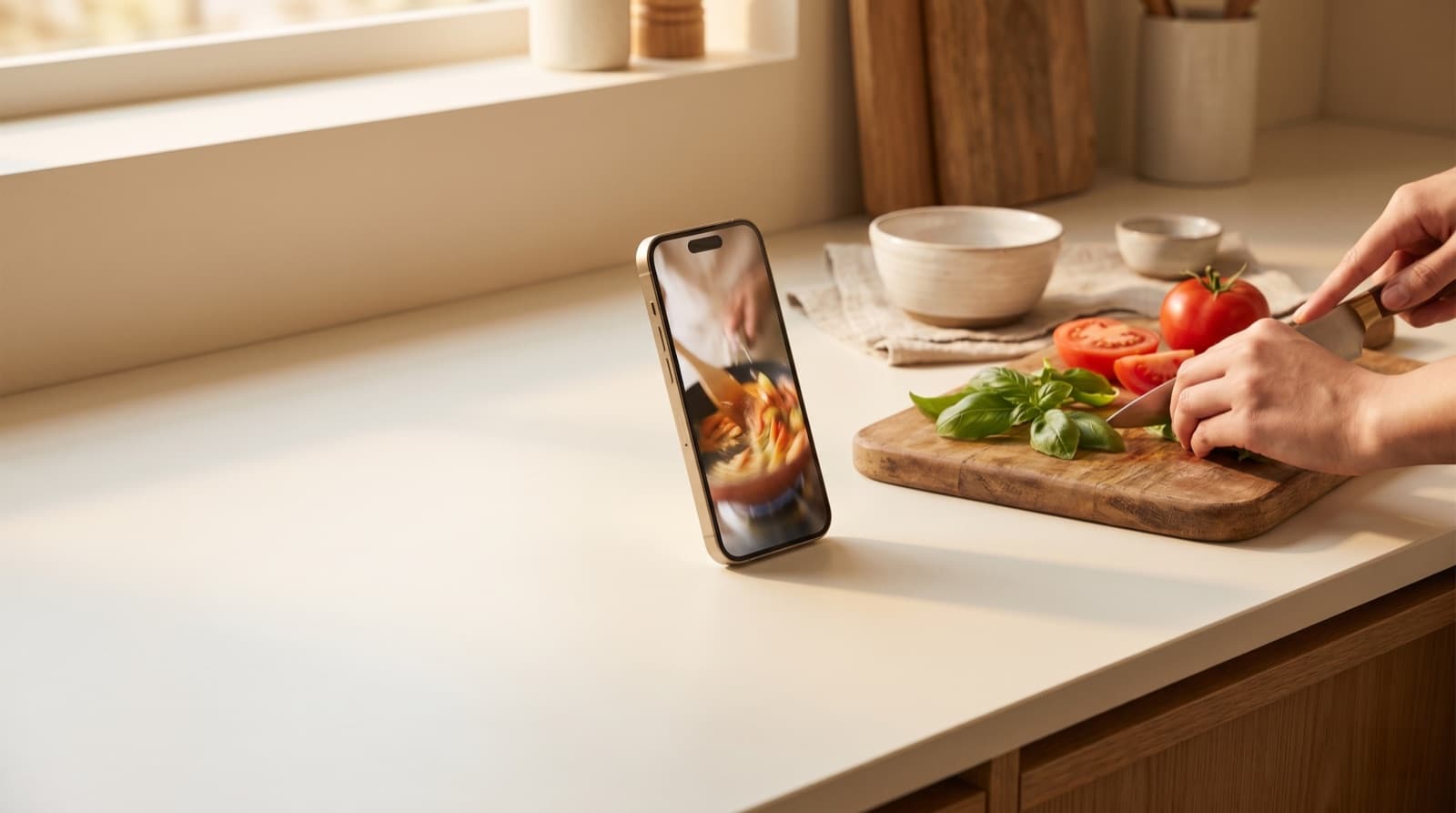
A recipe in a Kindle book requires you to either reread the ingredient list several times while shopping, or manually add everything to a notes app or shopping app. There is no “generate shopping list” button. When you are cooking, you scroll through the method in a reader app that is designed for sustained reading, not for tapping through steps one at a time with floury hands. Compare that to a recipe app with a cook mode — each step on its own screen, a tap to advance, the screen staying on while you work.
You licence the book, not own it
Amazon’s Kindle Terms of Service are explicit: when you buy a Kindle book, you are buying a licence to access the content, not ownership of the book. Amazon can remove a title from your library. This has happened — most famously in 2009, when Kindle users found their purchased copies of 1984 had been remotely deleted from their devices. Amazon has since committed to stronger protections, but the underlying structure remains: your access depends on your Amazon account staying active and Amazon continuing to hold the licence for the content.
Recipes saved to Pantree exist in your library independently of Amazon, Apple, Kobo, or anyone else.
How to Save Recipes from a Kindle Cookbook
Method 1: Photograph the screen (fastest, works on all cookbooks)
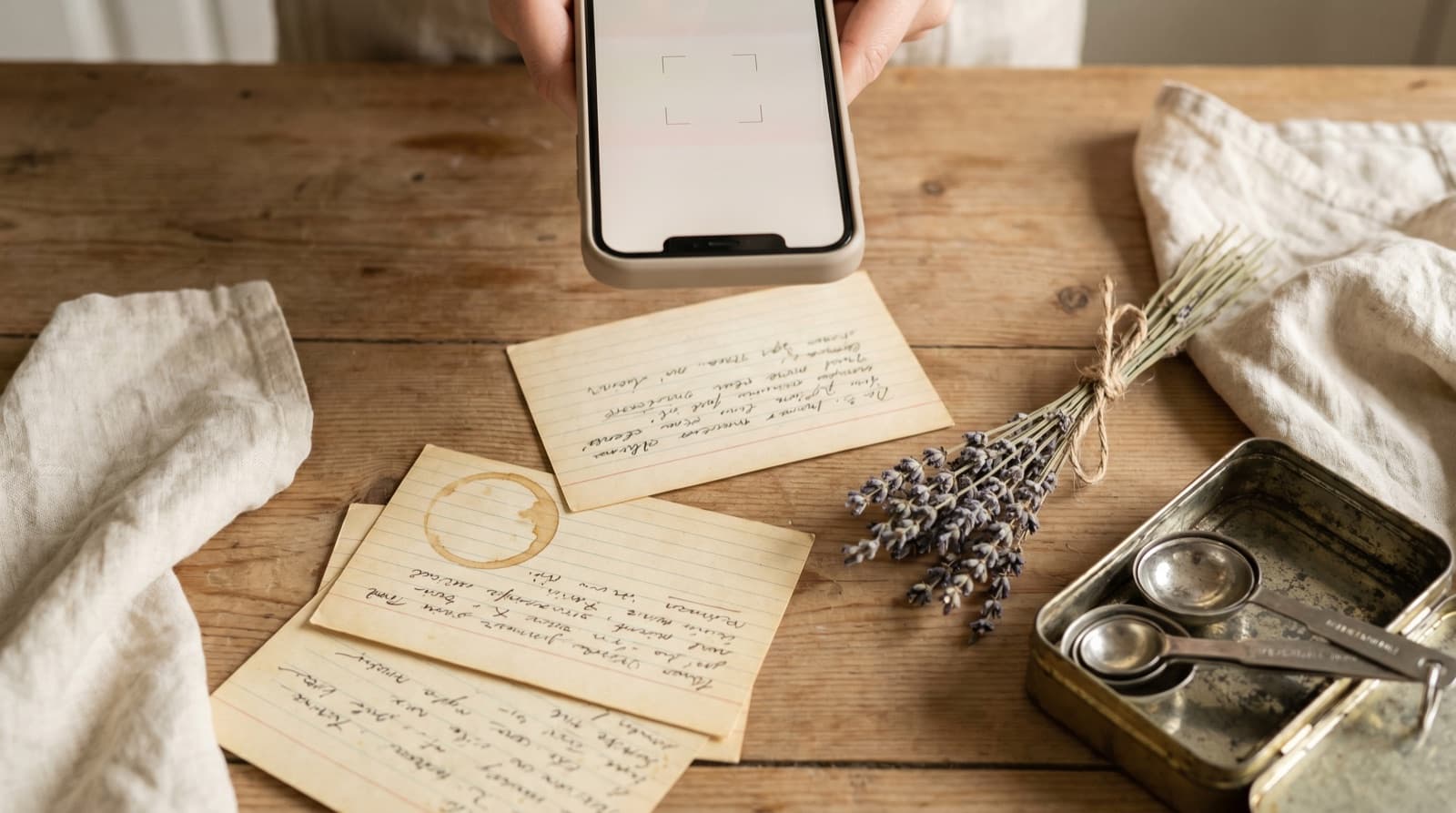
This is the most reliable method for Kindle cookbooks because it bypasses DRM entirely. You are not copying the text — you are taking a photograph of it with your phone camera:
- Open the Kindle app on your tablet or Kindle device and navigate to the recipe you want to save.
- Increase the font size so the recipe is readable in one or two screens.
- Take a photograph of the recipe page (or multiple photos if the recipe continues across pages).
- Open Pantree on your phone and use the camera import. Select the photos of the recipe.
- Pantree reads the text from the image and structures it into a recipe with a parsed ingredient list and ordered steps.
If you are using a Kindle e-reader device (rather than the app on a phone or tablet), the same method applies: take a photo of the e-reader screen with your phone. E-ink displays photograph cleanly because they have no backlight flicker. Good lighting and holding the camera square to the page gives a clear result.
Method 2: Kindle Cloud Reader (for books that allow text copy)
A small number of Kindle cookbooks — particularly those from independent publishers or self-published authors — are sold without DRM, or with a copy allowance of 100%. For these books, there is a workaround:
- Open the book in Kindle Cloud Reader (read.amazon.com) in a desktop web browser.
- Try selecting text from the recipe. If the book allows copying, you will be able to select and copy as you would from any web page.
- Copy the recipe text and paste it into Pantree’s text import.
If text selection is disabled, the DRM is active for this book and the photo method above is the right route.
Method 3: Export Kindle Highlights (useful for recipe notes, limited for full recipes)
Kindle lets you highlight passages and export them. At read.amazon.com/notebook, you can see all your highlights for a book and copy them. The limitation is that highlights are fragmented: if you highlighted the ingredient list in one highlight and the method in several more, the export is a list of disconnected passages without the structure that makes a recipe a recipe.
This method is most useful if you highlighted an entire recipe in one long highlight, which Kindle sometimes allows for short recipes. Export the highlight, copy the text, and paste it into Pantree. For most recipes that span a full page or more, the photo method is faster and more complete.
Saving Recipes from Other Digital Cookbook Formats
PDF cookbooks
PDF cookbooks — common as free downloads from food blogs, Patreon recipe packs, cooking class handouts, and food brand content — are often more accessible than Kindle books because many PDFs do not have DRM applied. Open the PDF in a viewer, try selecting the recipe text, and if selection works, copy it and paste into Pantree. Most blogger free cookbook PDFs, newsletter recipe packs, and cooking class handouts work with this method.
If the PDF was created from a scan rather than exported from a design tool, the text is embedded as an image and cannot be selected. In that case, use Pantree’s camera import to photograph the page — the same method as for the Kindle screen.
Apple Books
Apple Books uses Apple’s FairPlay DRM for most commercial cookbook titles. Text selection and copying are disabled in the same way as Kindle. The photo method applies: open the book on your iPad or iPhone, navigate to the recipe, and use your other device to photograph the screen — or use a second iPhone to take a photo and import directly into Pantree. If you are on a single device, take a screenshot of the recipe pages and import the screenshots into Pantree’s camera import.
Kobo
Kobo uses Adobe Digital Editions DRM on most titles. The same restrictions on copying apply. Take a photo of the Kobo device screen or take a screenshot within the Kobo app and import it into Pantree. Kobo’s e-ink displays photograph particularly cleanly.
Recipes from cooking subscription services
Some cooking subscription services deliver recipes as in-app content rather than downloadable files — a course platform, a meal planning subscription, or a chef’s online school. These work the same way as any on-screen recipe: photograph the screen with your phone and import into Pantree. The key risk with subscription content is that if you cancel the subscription or the service closes, you lose access. Recipes saved to Pantree stay in your library regardless.
The Wider Pattern: Recipes in Locked Formats
Kindle cookbooks are one version of a pattern that appears across most recipe sources: the recipe exists somewhere you can see it, but the format makes it difficult to use as a practical cooking tool. Recipes in Signal’s disappearing messages vanish before you cook them. Recipes in HelloFresh and Gousto rotate off the menu when the week ends. Recipes in a Kindle cookbook sit behind DRM with no shopping list and no cook mode.
The common solution is to move the recipe out of the locked format and into a library you own and control. Whether the source is a Kindle cookbook, an Apple Books title, a PDF from a food blogger, or a cooking class handout, the recipe in Pantree is a copy you own: searchable by ingredient, scalable for any number of servings, able to generate a shopping list, and cookable in step-by-step mode — none of which the original format provides.
You already paid for the cookbook. The recipes deserve to be something you can actually use.
Frequently Asked Questions
Can I copy text from a Kindle cookbook?
Most Kindle cookbooks have DRM (Digital Rights Management) that disables text selection and copying in the Kindle app. Publishers can also set a copy limit — typically 0 to 10% of the book — even on books where copying is technically allowed. In practice, this means most cookbooks you buy on Kindle will not let you select and copy a recipe. The workarounds are: photograph the screen and use Pantree's camera import to read the text, or type the recipe out and paste it into Pantree's text import.
What happens to my Kindle cookbooks if Amazon closes or I lose my account?
Amazon's Terms of Service make clear that Kindle purchases are licences, not ownership. Amazon can remove access to books from your library — this has happened before, most famously when Kindle books were remotely deleted from devices in 2009. While Amazon has since committed to more customer-friendly policies, your access to a Kindle cookbook is dependent on your Amazon account remaining active and in good standing, and on Amazon continuing to licence the content. Recipes saved to Pantree exist independently of Amazon's decisions.
Do Kindle Highlights let me export recipes?
Kindle Highlights let you mark passages and export them to read.amazon.com, but they are not designed for recipe use. You can export a list of highlighted passages as plain text, but the output is fragmented — a highlight of an ingredient list here, a method paragraph there — and the formatting that tells a recipe app what is an ingredient versus a step is completely absent. You would need to manually reassemble the recipe from the highlights. Photographing the recipe page and using Pantree's camera import is faster and more reliable.
Can I save recipes from PDF cookbooks?
Yes, and PDFs are often easier than Kindle books because many PDFs allow text selection. Open the PDF in a PDF viewer, select the recipe text, copy it, and paste it into Pantree's text import. If the PDF was created from a scan rather than exported from a typesetting tool, the text may not be selectable — in that case, use Pantree's camera import to photograph the page. Many blogger recipe PDFs, Patreon recipe packs, and cooking class handouts are delivered as PDFs and work well with this method.
Does Kobo or Apple Books have the same DRM problem?
Yes. Kobo uses Adobe DRM on most titles (which has the same copy restrictions as Kindle DRM) or its own Kobo DRM. Apple Books uses Apple's FairPlay DRM. Both prevent text copying in the same way Kindle does for most cookbook titles. The photographing-the-screen method works the same way for all three platforms — take a photo of the recipe page on the device and import it into Pantree.
What about cookbooks I got as a free PDF download from a food blog?
Free PDF cookbooks from food blogs are usually not DRM-protected, so text selection and copying typically work. Open the PDF in a viewer, select the recipe text, copy, and paste into Pantree. If the PDF is a scanned image rather than exported text, use Pantree's photo import. Food bloggers' free PDF cookbooks, newsletter recipe packs, and Patreon recipe collections all work well with either method.
Get your Kindle recipes into a library you can actually search.
Photograph the recipe page, import it into Pantree, and get a structured recipe with a shopping list — stored in your own library, independent of Amazon, Apple, or any other platform. Free on the App Store.