How to Save Recipes from Google Photos (Turn Screenshots into Searchable Recipes)
Google Photos has automatically backed up every recipe screenshot you’ve taken for years, across every device you’ve ever owned. The problem: it stores them as images, not as recipes. Ask Photos finds them. Google Lens reads the text. Neither turns them into something you can actually cook from.
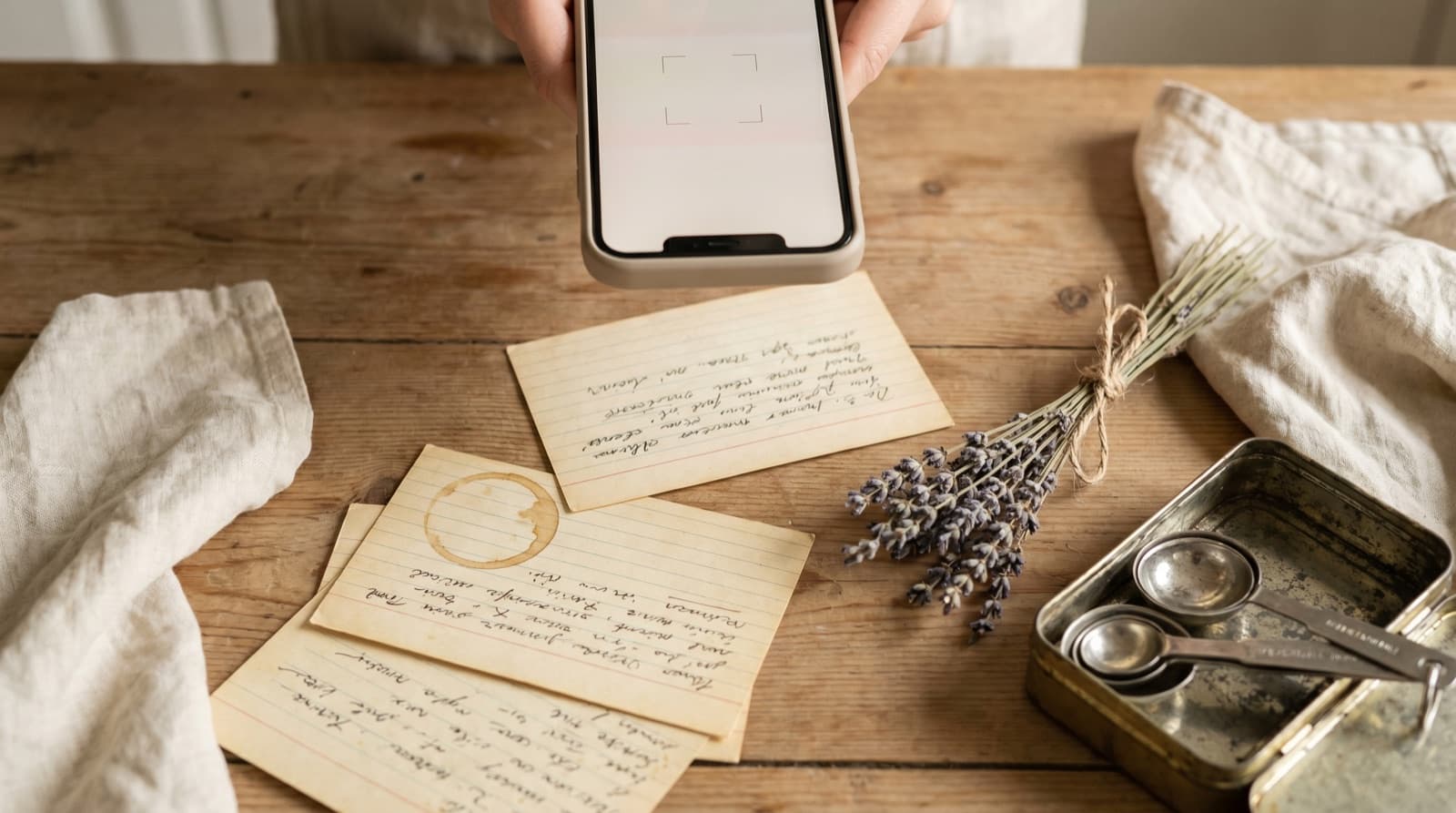
You Have More Recipe Screenshots Than You Think
Google Photos launched in 2015 and began offering free unlimited photo storage (for compressed images) to any Google account holder. For Android users, it became the default backup. For iPhone users, millions installed it as a second backup or a cross-device sync solution. By 2020, Google Photos had over one billion monthly active users and was storing more than four trillion photos.
The implication for recipe screenshots: if you have had a Google account and any smartphone for more than a few years, there is almost certainly a collection of recipe screenshots in your Google Photos library. Screenshots taken on phones you no longer own. Screenshots from a tablet. Screenshots you took at a friend’s house on someone else’s WiFi and forgot about. Google Photos backed them all up silently, and they are still there.
The average person takes far more recipe screenshots than they remember. A quick search for “food” in Google Photos routinely surfaces dozens or hundreds of results for people who have never specifically tried to build a recipe collection there. The screenshots exist. The problem is that they are not recipes — they are images of recipes, and that distinction matters enormously when you actually want to cook.
What Google Photos Can and Cannot Do With Recipe Screenshots
Google has invested heavily in making Photos more useful for finding specific content. The search function identifies objects, locations, and people in photos. The 2024 rollout of Ask Photos — powered by Google’s Gemini models — extended this to conversational queries: you can ask “show me the pasta recipes I saved” or “find the chicken dish from that cooking video” and get a set of relevant photos back.
This sounds useful. In practice, it has a hard limit. Ask Photos returns the photo. It identifies which of your images is likely a recipe screenshot and surfaces it in a search result. What it does not do is extract the content of that photo into structured data: a list of ingredients with quantities and units, a sequence of numbered steps, a serving count, a prep time. The search result is still a photo. You still have to read it like a photo.
Google Lens gets one step closer. Point Lens at a recipe screenshot and it will perform OCR — it reads the text in the image and can copy it or search for it. For a blurry or low-resolution screenshot, Lens is genuinely useful for making the text legible. But Lens extracts text, not structure. It will copy a wall of text that includes ingredients, method, serving suggestions, and website footer, with no separation between them. Importing that into a notes app gives you a messy block of text, not a recipe you can scale by halving the servings or generate a shopping list from.
The Specific Problem With Multi-Device Archives
The camera roll on your current phone contains screenshots from the last year or two. Your Google Photos library may contain screenshots going back five or ten years, from multiple devices. This creates a problem that does not exist for device-local storage: the archive is both larger and less organised than you expect, and much of it is inaccessible without opening Google Photos specifically.
A screenshot taken on an old Android phone that you replaced in 2022 does not appear in your iPhone’s camera roll. It does appear in Google Photos if you had backup enabled on that Android device. So does a screenshot taken on your tablet, and one your partner sent you on Google Messages that you saved, and one you clipped from a Chrome browser tab on your laptop. The full collection of recipe screenshots in your Google Photos library is almost certainly larger than you have accounted for, and the only way to see it is to look there.
This is the clearest case for a systematic save rather than a piecemeal approach: before you leave a screenshot in Google Photos indefinitely, it is worth taking five minutes to go through the recipe-tagged ones and convert the ones you actually want to cook into real structured recipes.
How to Find Your Recipe Screenshots in Google Photos
The most practical search methods, in order of thoroughness:
- Search for “recipe” or “food” — Google Photos’ image recognition will surface photos it has categorised as food. Most recipe screenshots will appear here, though plain-text screenshots on a white background may be less reliably identified.
- Use Ask Photos (Google One subscribers, 2024+): ask “show me my recipe screenshots” or “find cooking screenshots I saved”. The results are conversational and useful for jogging your memory about what you have saved.
- Open the Screenshots album — on Android, this is usually under Library → Screenshots. On iOS with Google Photos, you may need to search “screenshot”. This shows every screenshot ever taken, not just food ones, but it is comprehensive.
A useful exercise: scroll through your Screenshots album filtered to the last three years. Recipe screenshots tend to cluster around times of year when you were cooking more — the winter holiday period, a summer of trying new recipes, a period after you watched a particular cooking show. Once you have identified the ones you want to keep, the save process takes under a minute per recipe.
How to Save a Recipe Screenshot from Google Photos
There are two methods depending on whether the original recipe has a web page you can link to.
Method 1: Scan the Screenshot Directly
Use this when the screenshot is from a social media post, a video caption, a printed page, or any source where there is no URL to import.
- Open the screenshot in Google Photos.
- Tap the Share icon and select Open in Pantree, or save/share it to your camera roll and then open Pantree.
- In Pantree, tap + → Scan Recipe → Photo Library and select the screenshot.
- Pantree reads the image, extracts ingredients and steps into structured fields, and saves the recipe with scaled servings and an auto-generated shopping list.
The camera import works well for clear, well-lit screenshots with readable text. For older or blurrier screenshots, the results are less consistent — in which case the URL method below is significantly more reliable.
Method 2: Import from the Original URL
Use this when the screenshot is from a named recipe website — AllRecipes, BBC Good Food, NYT Cooking, Serious Eats, Tasty.co, or any of the major food publications. This method is faster and more accurate than scanning.
- Identify the recipe. Most screenshots of web recipes include the site name and recipe title, which is enough to find the original page with a quick Google search.
- Find the original recipe URL in your browser.
- In Pantree, tap + → Import from URL and paste the URL.
- Pantree fetches the structured recipe data from the page and saves it directly — no OCR involved, no text parsing errors.
For a large batch of screenshots from the same site — say, a dozen Tasty recipes or twenty AllRecipes saves — the URL method scales well. Ten seconds per recipe, no image quality concerns, and the result is always clean structured data.
Google Photos and the Storage Limit
One practical note worth flagging: Google Photos’ free unlimited storage for compressed photos ended in June 2021. Photos and screenshots uploaded after that date count against the 15 GB of free storage shared across your Google account. For many accounts, this limit fills up with a combination of Gmail attachments, Google Drive files, and years of photo backups.
A full Google account stops backing up new photos. If you have ignored the storage warning emails, some of your recent recipe screenshots may not have synced to Google Photos at all, even if you assumed they had. Checking your Google account storage at google.com/settings/storage is worth doing before you rely on Google Photos as a complete archive.
This is another reason to get the recipes you actually want into Pantree rather than leaving them in Google Photos: a recipe in Pantree is independent of Google’s storage policies, account status, or any future changes to how Photos handles free tier users.
Related Guides
If recipe screenshots are a problem across multiple surfaces, there are guides for saving recipes from your phone’s camera roll, saving recipes from TikTok, and organising recipes saved from Instagram. For screenshots from specific recipe sites, the NYT Cooking and AllRecipes guides cover the URL import method in more detail.
Frequently Asked Questions
Can Google Photos search for my recipe screenshots?
Yes and no. Google Photos' Ask Photos feature can respond to queries like 'show me my food photos' or 'find photos from when I was cooking' and surface relevant images. Google Lens can also read text within a photo, including a recipe screenshot. What neither feature does is extract that recipe as structured data — a list of ingredients with quantities, a sequence of steps, a serving count — so the result is still a photo, not a recipe you can scale or shop from. You end up looking at the screenshot, which is the same problem you had before you searched.
How is Google Photos different from my iPhone's camera roll?
Your iPhone camera roll stores photos on the device. Google Photos is a cloud backup that runs on both Android and iOS, automatically uploading every new photo across all devices where you are signed in. The practical difference for recipes: screenshots taken on your phone years ago and photos taken on a tablet or an old Android device all end up in the same Google Photos library, accessible from any device. This means your recipe screenshot archive is larger and more scattered than you probably realise — it includes screenshots from devices you no longer own. The same structural problem applies: they are images, not searchable structured recipes.
Can Google Lens extract a recipe from a photo?
Google Lens can perform OCR (optical character recognition) on a photo and read the text it contains. If you point Lens at a recipe screenshot, it will identify the text and may surface a Google Search result for the recipe or show you the text. What Lens does not do is parse that text into recipe structure — it will not separate ingredients from method steps, it will not detect quantities and units, and it will not create a shoppable list or allow you to scale servings. The text extraction is genuinely useful for reading a low-resolution screenshot, but it does not give you a recipe in a form you can cook from or organise.
What is the fastest way to turn a recipe screenshot into a real recipe?
In Pantree, tap + → Scan Recipe → Camera or Photo Library, select the screenshot from your Google Photos library (which appears alongside your camera roll on both Android and iOS), and Pantree reads the image, extracts the recipe structure, and saves it with scaled servings and a shopping list. For recipes that have a corresponding web page — most screenshots of Tasty, AllRecipes, BBC Good Food, NYT Cooking, and similar sites — the faster path is to find the URL of the original recipe page and use + → Import from URL instead. URL import is lossless and takes about ten seconds per recipe.
Does Google Photos delete photos after a certain time?
Google Photos itself does not automatically delete photos, but there are a few ways your recipe screenshots can disappear. First, Google accounts have a 15 GB free storage limit shared across Gmail, Drive, and Photos; once full, new uploads are paused and Google may eventually remove old content if the account remains over quota without upgrading. Second, Google's 'free unlimited storage' policy for photos ended in 2021 — photos uploaded after June 2021 count against the 15 GB limit. Third, if you delete photos from your phone's camera roll, Google Photos may mirror that deletion depending on how sync is configured. None of these is likely to wipe a specific recipe screenshot overnight, but the storage limit is real and a full Google account is a genuine risk for long-term photo retention.
How do I find all my recipe screenshots in Google Photos?
The most reliable method is to open Google Photos and type 'recipe' or 'food' into the search bar. Ask Photos (Google's AI search layer, rolled out from 2024 in Google One plans) allows more conversational queries like 'show me screenshots of recipes I saved'. The search results will not be exhaustive — Google's image recognition labels photos by visual content, so a plain text screenshot of a recipe on a white background may not be identified as 'food'. A manual scroll through your screenshots album (Photos → Library → Screenshots on Android, or search 'screenshots' on iOS Google Photos) is more thorough if you want to catch every one.
Turn your Google Photos recipe screenshots into a real recipe library
Pantree imports from photos, URLs, and camera — structured recipes with scaling and shopping lists, in a library you own.