How to Save Recipes from Google (Featured Snippets, Recipe Cards & Search Results)
Google shows you the full recipe right in the search results — ingredients, steps, ratings, cook time. Then it offers no way to save any of it. Here is what is actually happening and how to get the recipe into a library you will cook from.
What Google Is Actually Showing You
When you search “chocolate chip cookies recipe” and Google returns a card with a photo, a star rating, a list of ingredients, and a step-by-step method before any organic links — that is a recipe rich result, built from structured metadata that the originating website has embedded in its page code.
Nearly every major recipe site — BBC Good Food, Serious Eats, NYT Cooking, AllRecipes, Bon Appétit, Food52, independent food blogs running WordPress with a standard recipe plugin — publishes its recipes with Schema.org/Recipe markup: a standardised, machine-readable format that names each field explicitly. Ingredients. Steps. Cook time. Serving count. Calories. Rating. Google reads that structured data and displays it as a recipe card directly in search results — no click required.
The consequence is that hundreds of millions of people now discover and partially read recipes without ever visiting the site that published them. A 2024 SparkToro analysis found that roughly 58% of Google searches in the US result in zero clicks to any website. Recipe searches are among the most aggressively zero-click categories: Google shows so much of the recipe card that many users read the ingredients and steps directly from the results page, decide what to buy, and never tap through to the source.
None of that recipe data is saved anywhere. Google is a search engine, not a recipe manager. The card disappears the moment you close the tab.
The Screenshot Trap
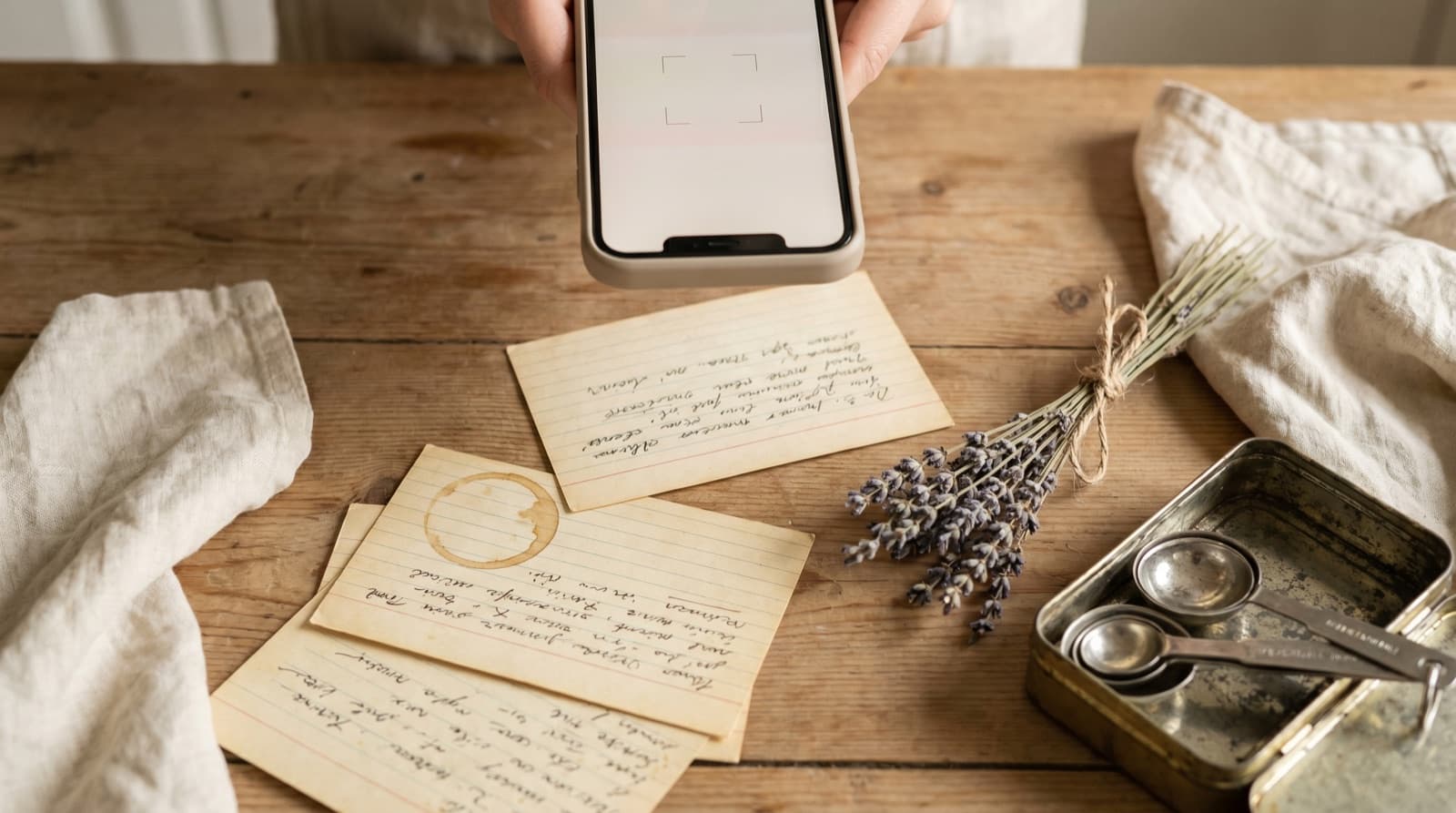
The instinctive response is a screenshot. A quick press of the side buttons and the recipe card is captured — ingredients, steps, the lot. The problem is that a screenshot destroys the structure that made the data useful.
A screenshot is a flat image. You cannot ask it how much flour you need for eight servings instead of four. You cannot extract the ingredients into a shopping list sorted by supermarket aisle. You cannot search your screenshots six months later for “pasta dishes under 30 minutes”. You certainly cannot tap a single button to add every ingredient to your weekly shop.
Google Photos can OCR the screenshot — the Lens feature will read text in the image and let you select and copy it. But copying “200g plain flour” as a line of text is not the same as having a structured ingredient with a quantity, a unit, and an ingredient name that Pantree can scale, search, and aggregate into a shopping list. The text might look the same on screen; as data, it is completely different.
The Right Way: Get the Source URL
Every Google recipe card credits the source site. It is usually displayed as a grey byline beneath the recipe title — “BBC Good Food”, “Serious Eats”, “Smitten Kitchen”. On mobile, the card may expand to show ingredients before offering a “View full recipe” link. Either way, tapping through takes you to the original recipe page.
That original page contains the same structured recipe data Google was reading when it built the card — except now you can import it into Pantree directly, with full fidelity.
Step by step
- Search for the recipe on Google. The recipe card appears at the top of results.
- Tap the card title or the source site name to open the original recipe page in your browser.
- Copy the URL from your browser’s address bar — the full page URL of the recipe on the original site (e.g.
bbcgoodfood.com/recipes/...orseriouseats.com/...). - Open Pantree and tap + → Import from URL.
- Paste the URL. Pantree reads the page’s structured recipe data and saves the recipe with all ingredients, steps, serving count, and cook time intact — ready to scale and shop from.
For mainstream recipe sites, this takes under ten seconds. For independent food blogs using standard WordPress recipe plugins (WP Recipe Maker, Tasty Recipes, Mediavine Create), it works equally well — those plugins embed the same Schema.org structured data that Google is reading.
What About Google Lens on a Screenshot?
Google Lens can read text from a screenshot of a recipe card and allow you to copy it as plain text. This is better than nothing but still falls short of structured recipe data: Lens gives you a block of text, not parsed ingredients with quantities and units, not steps numbered in order, not a serving count the app can scale. If the recipe card screenshot is already in your camera roll, the practical fix is to find the recipe name visible in the screenshot, search for it directly, click through to the source site, and import that URL into Pantree. Three extra taps. Far more useful output than copying Lens-extracted text by hand.
Google Recipe Collections (and Why They Miss the Point)
Google introduced a recipe saving feature inside Google Search — a “Saved” tab that lets you bookmark recipes directly from search results. It is better than nothing. What it is not is a recipe app: saved Google recipes are stored as links, displayed as thumbnails in a list, and accessible only in Google Search on the same signed-in account. There is no scaling, no shopping list generation, no ingredient search across your saved collection, no offline access, and no way to add recipes from outside Google.
If your entire recipe collection exists somewhere in the Google ecosystem — Saved in search, screenshots in Google Photos, links in Gmail threads — the URL import method above consolidates all of it into one structured library. For each saved Google recipe, open the link, copy the source URL, import into Pantree. A collection of thirty saved recipes migrates in under fifteen minutes.
The Discovery vs. Storage Problem
Google is an exceptional discovery tool. Recipe rich results surface highly rated, well-tested dishes from reliable sources in under a second. For finding recipes, nothing beats it.
For keeping recipes, Google is the wrong tool entirely — not because of any deficiency in Google, but because recipe management is a fundamentally different job. Discovery is about breadth: show me ten options for a Monday chicken dinner. Storage is about depth: give me my chicken tikka masala with scaling to six servings, the shopping list ready, and a note that I reduced the chilli last time.
The practical workflow: use Google to find. Use the source URL to import into Pantree. The recipe then lives in a place built for cooking from, not searching through. The Google card disappears — the recipe stays.
Related Guides
If recipe fragmentation is happening across multiple surfaces, there are dedicated guides for saving recipes from browser tabs, getting recipes out of Pocket and Feedly, and saving recipes from any recipe website. For recipes found on social media rather than search, the guides for TikTok, Instagram, and YouTube cover the same URL-import approach for each platform.
Frequently Asked Questions
Why does Google show recipes in search results but not let you save them?
Google displays recipe data in its search results by reading structured metadata (Schema.org/Recipe markup) embedded on the originating recipe websites. Google is surfacing this data as a convenience so you can see ingredients and ratings without clicking through — but it is a preview, not a save function. Google's product is search, not recipe management, so there is intentionally no 'save to my recipes' button in the search UI. The data belongs to and lives on the source website; Google is only displaying a snapshot of it.
Can I save a Google recipe card to Google Keep or Google Drive?
You can share the search results page URL to Google Keep, which saves the link — but not the recipe content itself. Google Keep will store a note with the URL and a preview thumbnail, not a structured ingredients list you can scale or shop from. Google Drive has no recipe-parsing capability. Neither tool treats the recipe as structured data; both treat it as a web link. The recipe stays on whatever site Google was referencing, not in your Keep notes or Drive folder.
Is it safe to screenshot a Google recipe card?
Safe in the sense of legal: yes, screenshots for personal use are fine. Useful: no. A screenshot of a Google recipe card is a flat image. You cannot scale it for four people instead of two. You cannot extract the ingredients into a shopping list. You cannot search your screenshots by ingredient. Google Photos can read text in screenshots via its Lens feature, but it does not interpret that text as recipe data — it cannot tell you that '200g plain flour' is an ingredient and '1 tsp baking powder' is a separate item to add to your shopping list. The screenshot keeps the information but destroys its structure.
What is the difference between a Google featured snippet and a Google recipe card?
A featured snippet is a general-purpose result box that extracts a short answer from a webpage — it can appear for any query type. A recipe card (also called a recipe rich result) is a specialised search feature triggered by queries like 'chicken tikka masala recipe' or 'how to make banana bread'. Recipe cards show the dish name, image, rating, cooking time, and sometimes the full ingredients list, pulled from the site's structured recipe data. Both are read-only previews; neither provides a save function.
How do I find the original recipe URL when Google shows a recipe card?
Google recipe cards include the source site name and URL beneath the recipe title — it is typically displayed as a small grey byline like 'BBC Good Food' or 'Serious Eats'. Clicking the card title or the site name takes you to the original recipe page. On mobile, the card may expand to show ingredients before offering a 'View full recipe' link that opens the source site. That is the URL you want: the original recipe page, not the Google search URL. Copy it from your browser's address bar once the page loads.
What is Google Lens and why can't I use it to save recipes?
Google Lens is an image recognition and text extraction tool built into the Google app and Google Photos. When pointed at a recipe card on screen or in a screenshot, Lens can read and copy the text — you can select ingredients and copy them as plain text. What Lens cannot do is interpret that text as structured recipe data: it does not know that a line reading '2 cloves garlic, minced' is an ingredient rather than a step instruction, it cannot automatically separate ingredients from method steps, and it has no concept of serving size or scaling. Lens gives you raw text; a recipe app gives you structured data you can act on.
Stop screenshotting Google recipe cards — start saving the real thing
Pantree imports any recipe URL in under ten seconds: structured ingredients, scaled servings, and a shopping list you can use at the supermarket.